
Updated Customer Support Platform
Project Overview
Summary
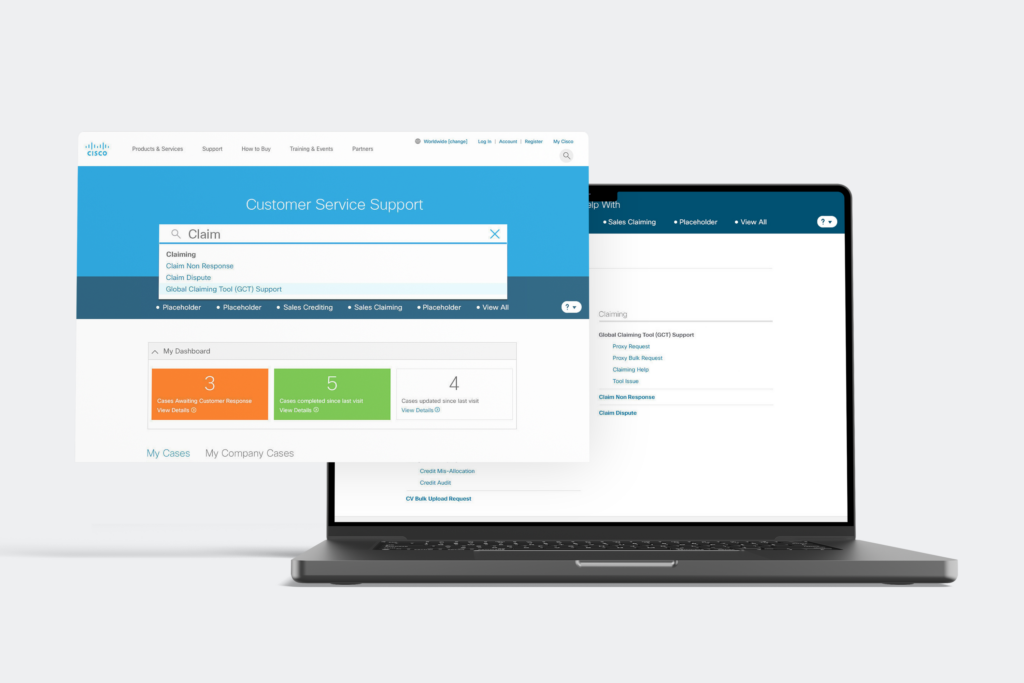
I redesigned Cisco’s Customer Support Portal to make it easier for users to find help and manage cases independently. By mapping user flows, creating wireframes, and applying the Cisco UI kit, I shifted the navigation to a search-based system with quick links and case dashboards. The work clarified workflows, reduced user confusion, and provided a foundation for more self-sufficient support — all without relying on quantitative metrics.
Problem to Solve
The Cisco Customer Support Portal was cumbersome for users and created significant extra work for customer service reps. Users had to navigate nearly 100 case types, submit a request, and rely entirely on reps to create a support case. Once submitted, users had little visibility into the status or resolution of their request, which caused frustration and uncertainty.
This workflow placed the full burden on the support team and limited users’ ability to help themselves. Cisco’s goal was to make the portal as self-sufficient as possible, enabling users to find help, create cases, and track progress independently.
Process
Discovery
I immersed myself in the portal to understand its navigation, workflows, and real-world user cases. I spent extensive time with the product owner, who had nearly 10 years of experience with the platform, gaining deep insight into pain points, legacy constraints, and user behaviors.
Design: Pencil Sketches
I translated the research insights into user flows and then created pencil sketches to map out step-by-step processes for key tasks.
With the team spread across London, Amsterdam, India, Chicago, Texas, and California, I photographed the sketches, compiled them into a PDF, and included interaction notes to clarify the behavior of each page element.
I conducted multiple rounds of revisions to address development constraints and ensure the flows were both feasible and aligned with the overall UX vision.

Design: Wireframes
My initial wireframes were based on the existing Technical Support page, which had a layout very different from the final design. Once the wireframes were complete, I discovered that Cisco had released a new UI kit and style guide, which needed to be applied.
Using the same user flows from my sketches and wireframes, I updated the visuals to align with the Cisco style guide, creating polished, consistent designs that met both user needs and enterprise standards.

Design: Visual Design
Upon wireframe completion I had learned Cisco had a new “UI kit” or style guide I needed to follow. I used the same user flows I created in the wireframes and pencil sketches while updating the look and feel to create the final visuals, these were based on the Cisco style guide.
I then proceeded to take the visuals and put them into InVision to create a basic prototype. This assisted the development and product teams when it came to the their overall understanding of the direction we wanted to take the project. Unfortunately, InVision has gone out of business and I was not able to convert the prototype to Figma.
The development team I was working with was working in a new platform called Pega, for most of them this was their first exposure to the system. That unfortunately created some issues along the way. There were multiple unforeseen technical difficulties therefore I had to consistently adapt the user flows to address the limitations of the system.
Also, this was the first project the dev team was building in Cisco’s new style guide so I had to create a manual to show how each element was to be used.

Results
I converted the navigation to a search-based interface and added a site-map style landing page for users who preferred to explore all available support options. To streamline common tasks, I included quick links below the search bar, saving users time and effort.
Since the redesign was a significant departure from the previous experience, I also included a step-by-step tutorial at the start of the prototype to guide users through the new interface. This tutorial represented my first pass, with final copy still being completed when I phased off the project.
Business Impact
The new search-based navigation increased customer self-sufficiency, allowing users to find help and create cases independently. It also freed up customer support staff to focus on more complex issues, improving efficiency and overall service quality.
Client
Cisco
Services
- Information Architecture
- Wireframes
- User Experience Design
- User Interface Design
- Visual Design
Tools
- Sketch
Design Elements
Outcomes
Final Designs
Basic Table Page
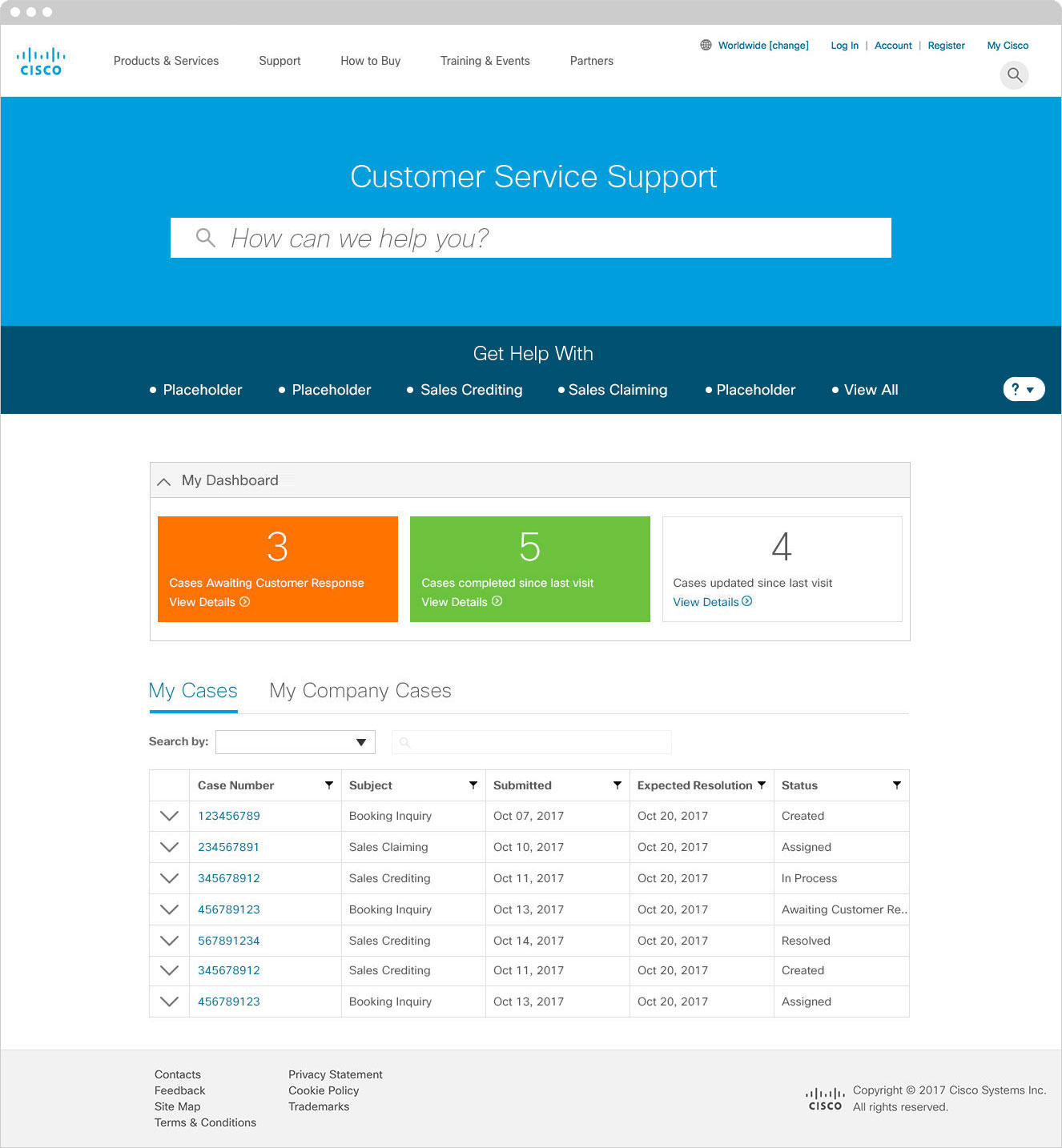
This is the base page for the Customer Service Support portal. The page assumes the user is logged in and has existing cases.
The search bar is where a user can search for the case type they need help with. “My Dashboard” functions as a filter to display cases by status. Lastly, the table displays active cases.
Search for a Case Type
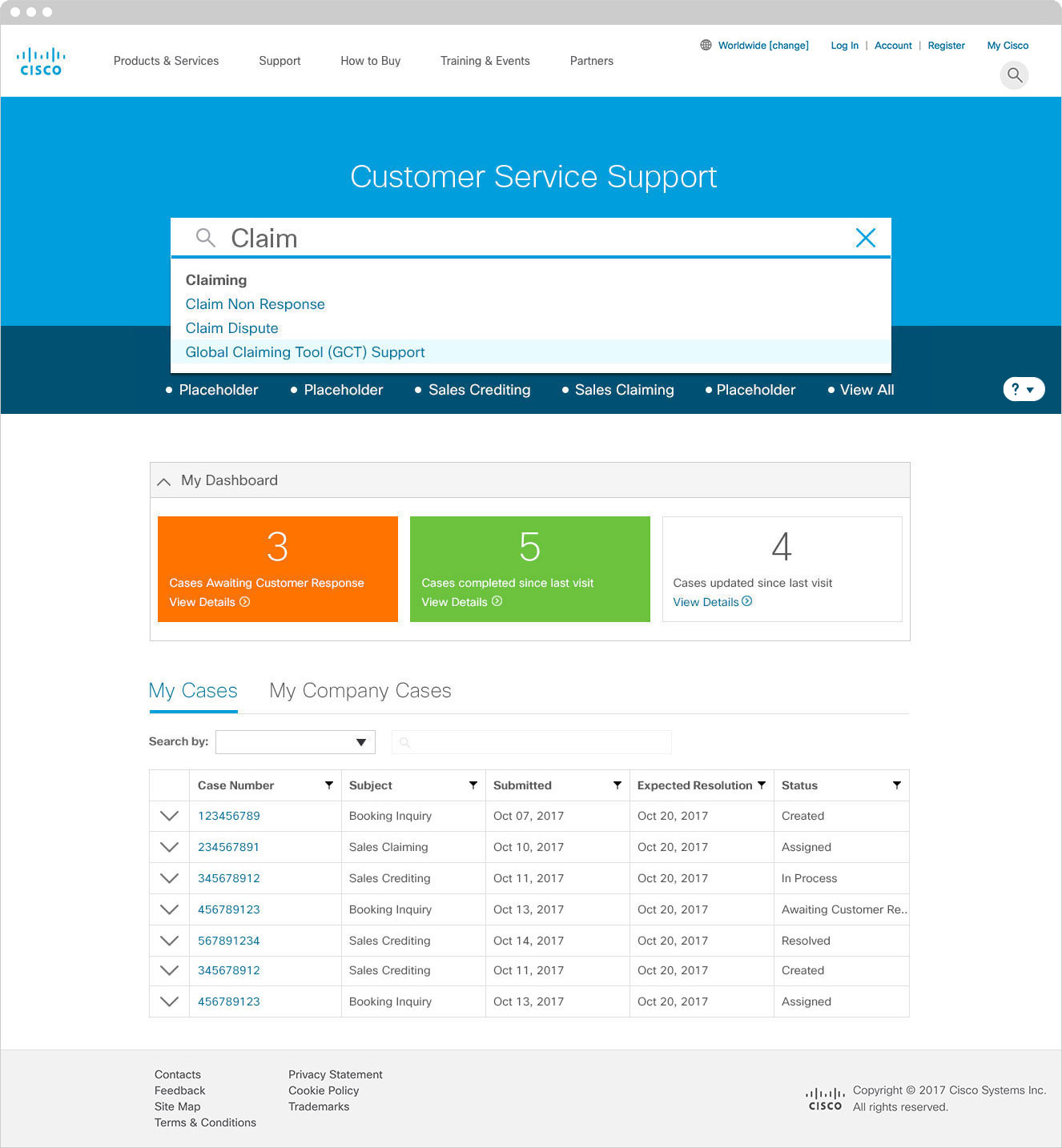
When a user searches for support assistance they will see a predictive set of results based upon their search. User then clicks the result that best represents their needs and it begins the case creation process.
No Results
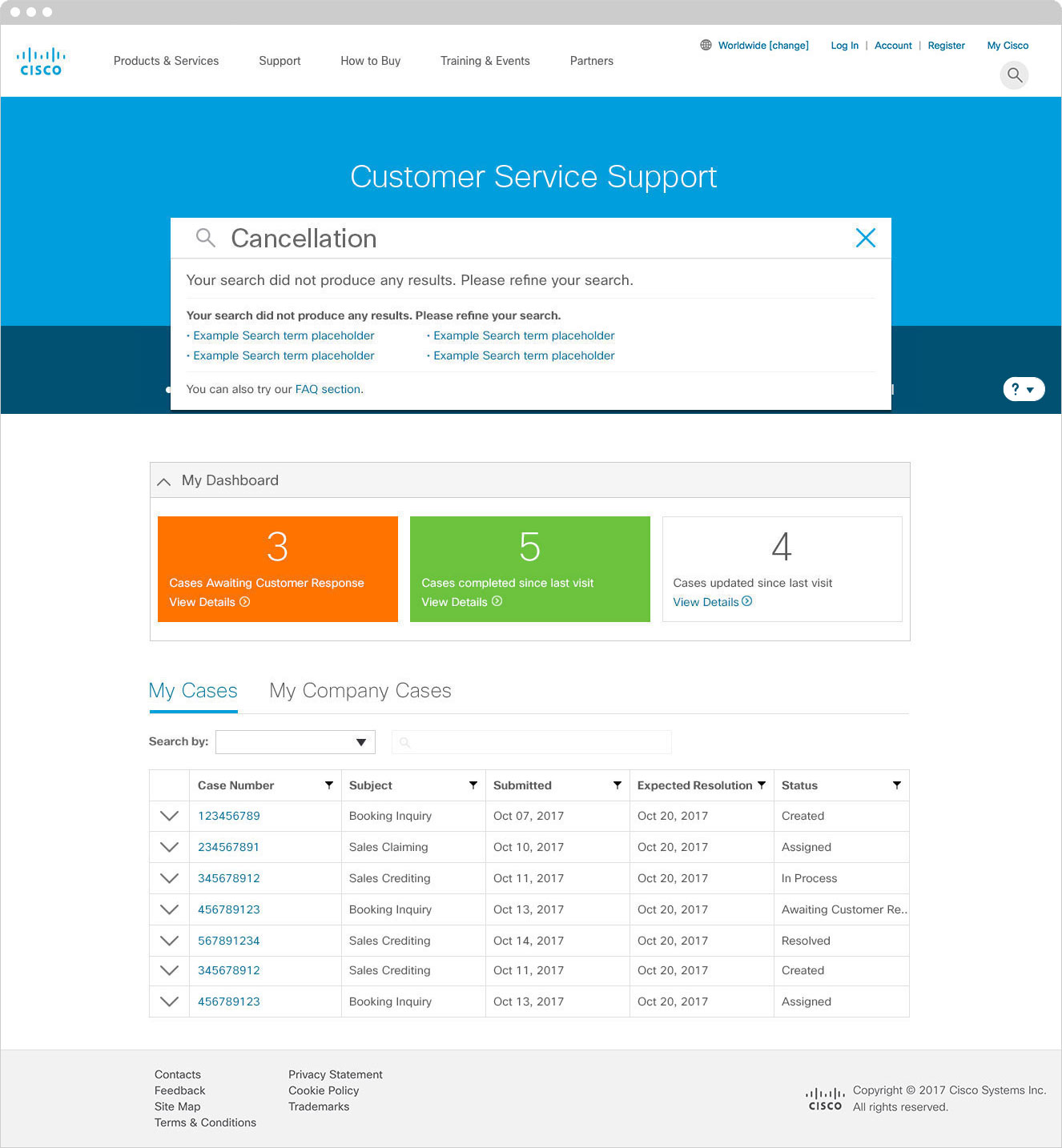
If a search doesn’t generate any results the user will be presented with multiple options.
View All
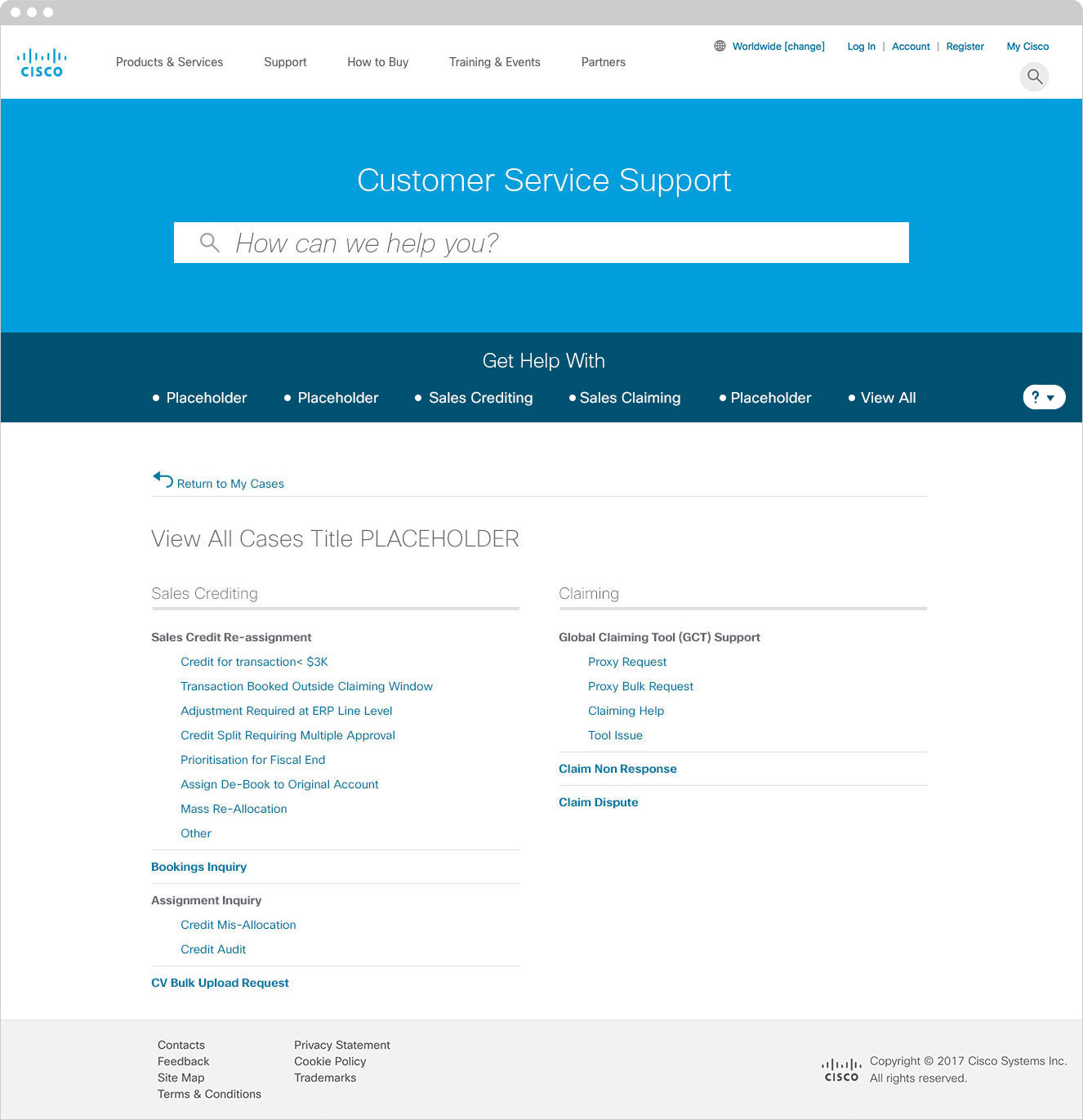
If a user knows the case type they need help with they can click a case type from the menu. The “View All” button shows a list of all case types and sub types.
Quick View
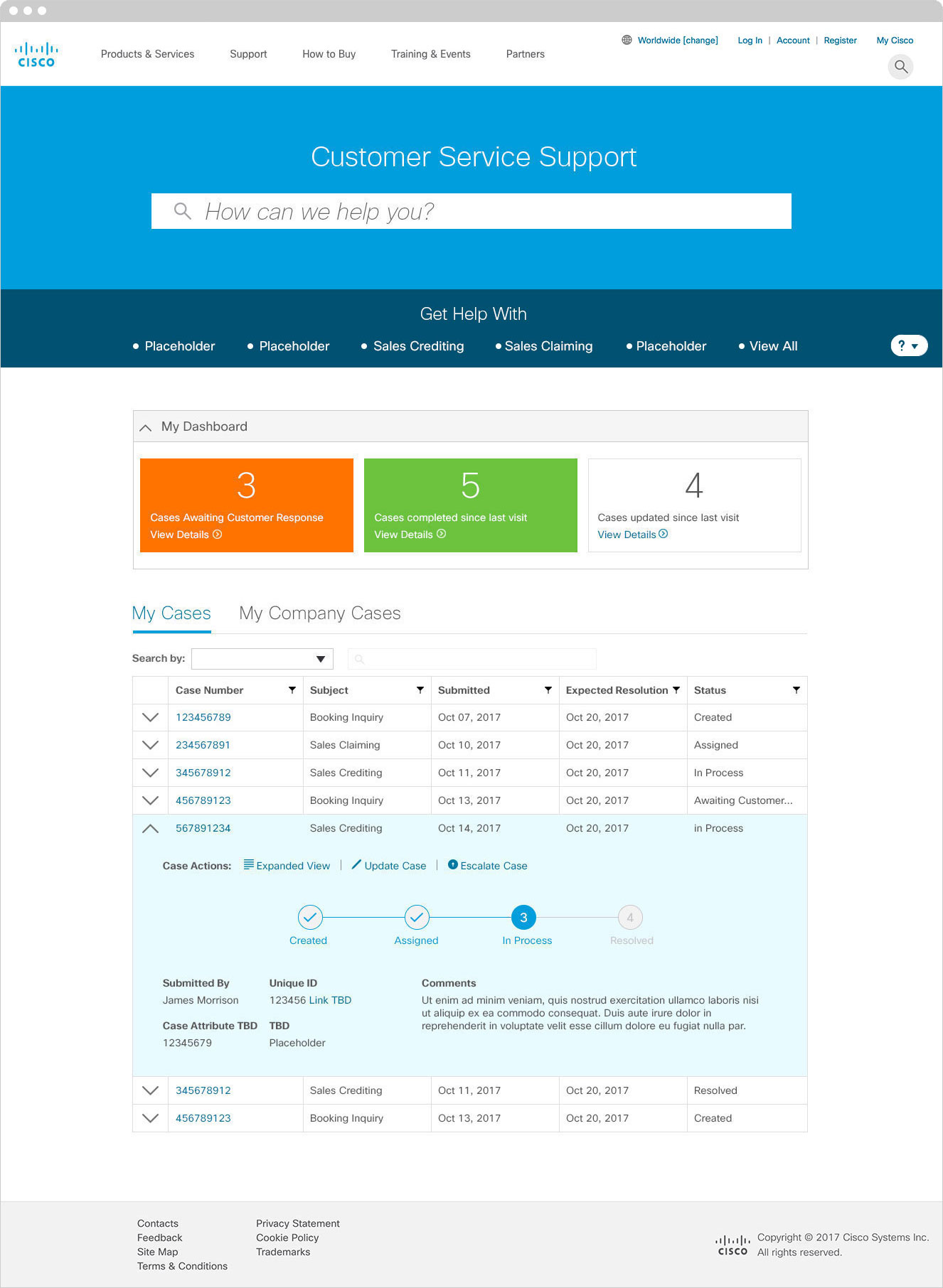
If a user has a live case they can expand the the table row to get a quick view of the case. This view supplies a few details, such as who made the case, the case creation date and where the case is in the process. Also, a user can escalate or update a case from this view. The “Expanded View” takes the user to a detailed view of the case, a user can also click the case number in the row to get to the detailed view as well.
Case Details
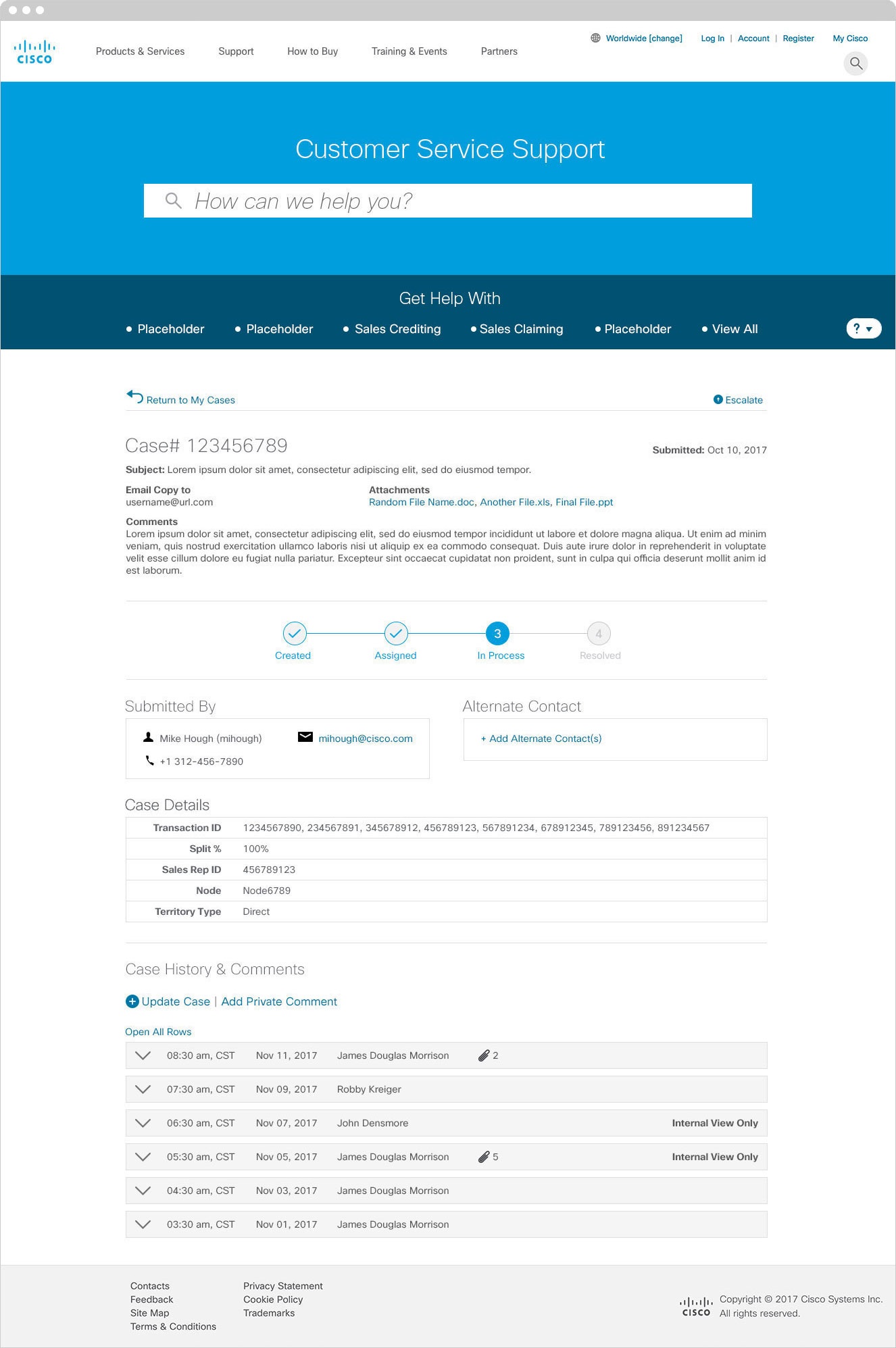
This is the most detailed view of a case. A user can see the full history of a case. The user can also update, escalate or address a case that requires additional attention.