
Driver-Based Financial Data Modeling
Project Overview
Summary
Jirav is a financial planning and analysis platform used by finance teams to build budgets, forecasts, and financial models. I designed the Budget Drivers feature end-to-end: a system that lets users attach calculation logic to any line in a financial plan, so a forecast updates automatically as its underlying assumptions change instead of requiring manual recalculation.
The core challenge was architectural: eight structurally different driver types, each with its own inputs, logic, and edge cases, needed to feel like one coherent system, not eight separate tools bolted together. Working directly with Jirav’s CEO, a former CFO, I designed a shared configuration pattern that scaled across all eight types and a formula-bar summary that made every driver’s logic readable directly in the budget table.
Problem to Solve
Finance teams needed to model budget assumptions programmatically, not just enter numbers, but attach repeating logic that would drive a forecast forward automatically. A Wages line might need to scale with headcount. A marketing budget might need to track as a percentage of another account. Each type of logic is structurally different from the others.
The design challenge wasn’t any single driver type. It was building one configuration system that could hold eight fundamentally different kinds of logic without forcing users to learn eight different interaction patterns.
Process
Discovery and Collaboration with Martin
I worked directly with Martin, Jirav’s CEO and a former CFO, throughout the design process. His domain expertise was essential. The driver system encodes real financial reasoning: which base period options a finance team actually needs, how headcount assumptions should link to expense accounts, when a periodic increase starts and how its base is calculated. These decisions cannot be made by intuition alone.
Our sessions shaped the overall architecture: the shared config panel pattern used across all 8 driver types, the entry flow from the budget table, the formula bar summary that appears after a driver is saved, and the granular logic inside each driver type.
The Core Decision: One Pattern, Eight Types
Working closely with Martin, Jirav’s CEO and a former CFO, I designed a shared config panel architecture used identically across all eight driver types: Custom, $/Headcount, Annual Spread, Annual Target, Growth on Historicals, Periodic Increase, Explicit Spend, and Percentage of Another Account. His domain expertise shaped which decisions were structural (true for every driver type) versus which were type-specific, decisions I couldn’t have made correctly without someone who thought like a CFO in the room.
Once a user understood how to configure one driver type, that understanding transferred directly to the rest. The account and department picker, the fiscal year scoping, and the formula bar summary all worked identically regardless of which of the eight types a user was configuring.
Outcomes
The Budget Drivers feature shipped as a core part of Jirav’s budgeting experience, and the driver logic was built to the real options and edge cases finance teams reach for in practice, not an approximation of them. That’s a direct result of designing alongside someone who had done the job the software was built for.
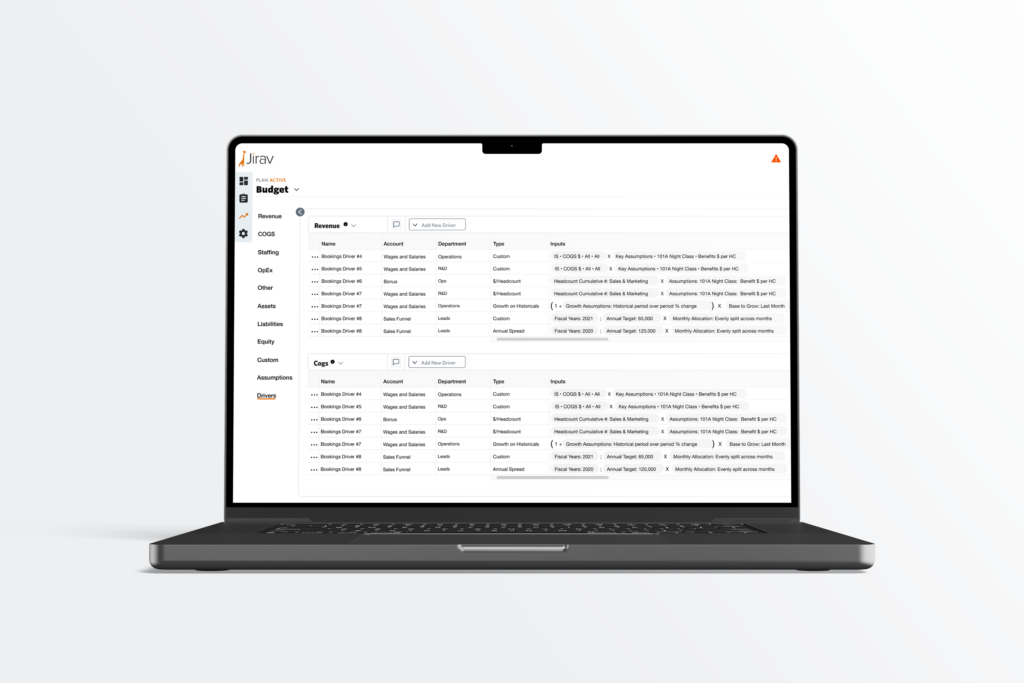
The Drivers Module gave teams managing large numbers of drivers a dedicated view across Revenue, COGS, and OpEx, with bulk edit and clone flows to reduce repetitive setup across similar accounts and departments.
Business Impact
The Budget Drivers feature let Jirav’s finance users build model-driven forecasts directly inside the platform, replacing the spreadsheet exports and manual formula maintenance that had been the workaround before. Because Martin was directly involved throughout, the feature reflects how CFOs actually reason about modeling, not an outside approximation of it.
A note on this write-up: the original InVision prototype for this project was lost when InVision shut down, and some of the Sketch-file detail was reconstructed with Claude’s help to accurately document the project’s scope for this case study. The architecture, the collaboration with Martin, and the design decisions described above reflect what I directly recall and can speak to; screen-by-screen specifics beyond what’s shown here are not included for that reason.
Client
Jirav
Services
- Information Architecture
- Wireframes
- User Experience Design
- User Interface Design
- Visual Design
- User Flows
Tools
- Sketch
- InVision
- Figma
Design Elements
Designs
Note: because of the way the application was built, screenshots are unusually wide and are presented individually.
Account and Department Picker
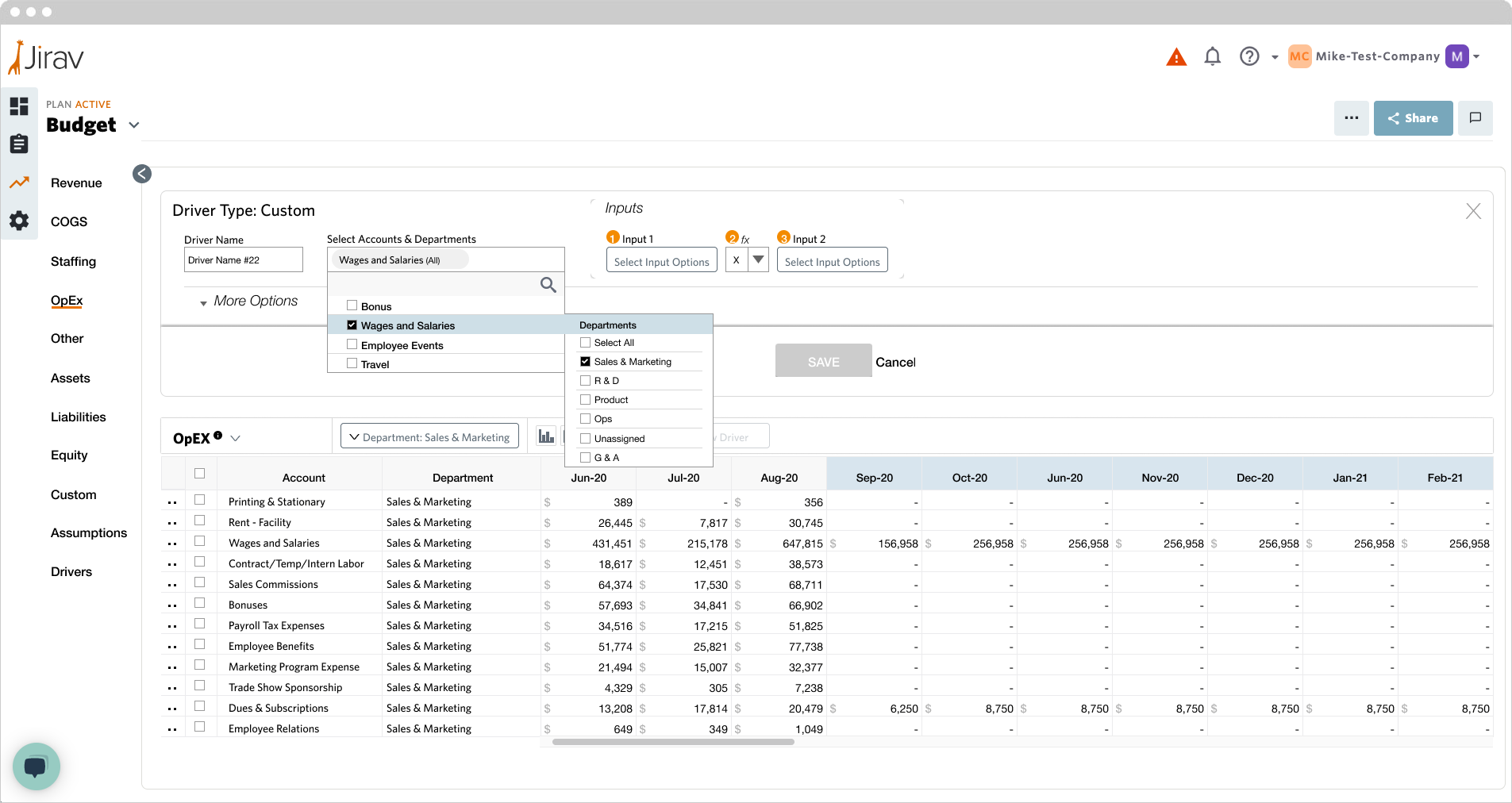
The one component shared across every driver type. Users select one or more accounts, then a secondary tier reveals department checkboxes. A compact summary chip, “Wages and Salaries (Sales & Marketing),” keeps the selection scannable without leaving the panel.
Custom Driver: Full Configuration
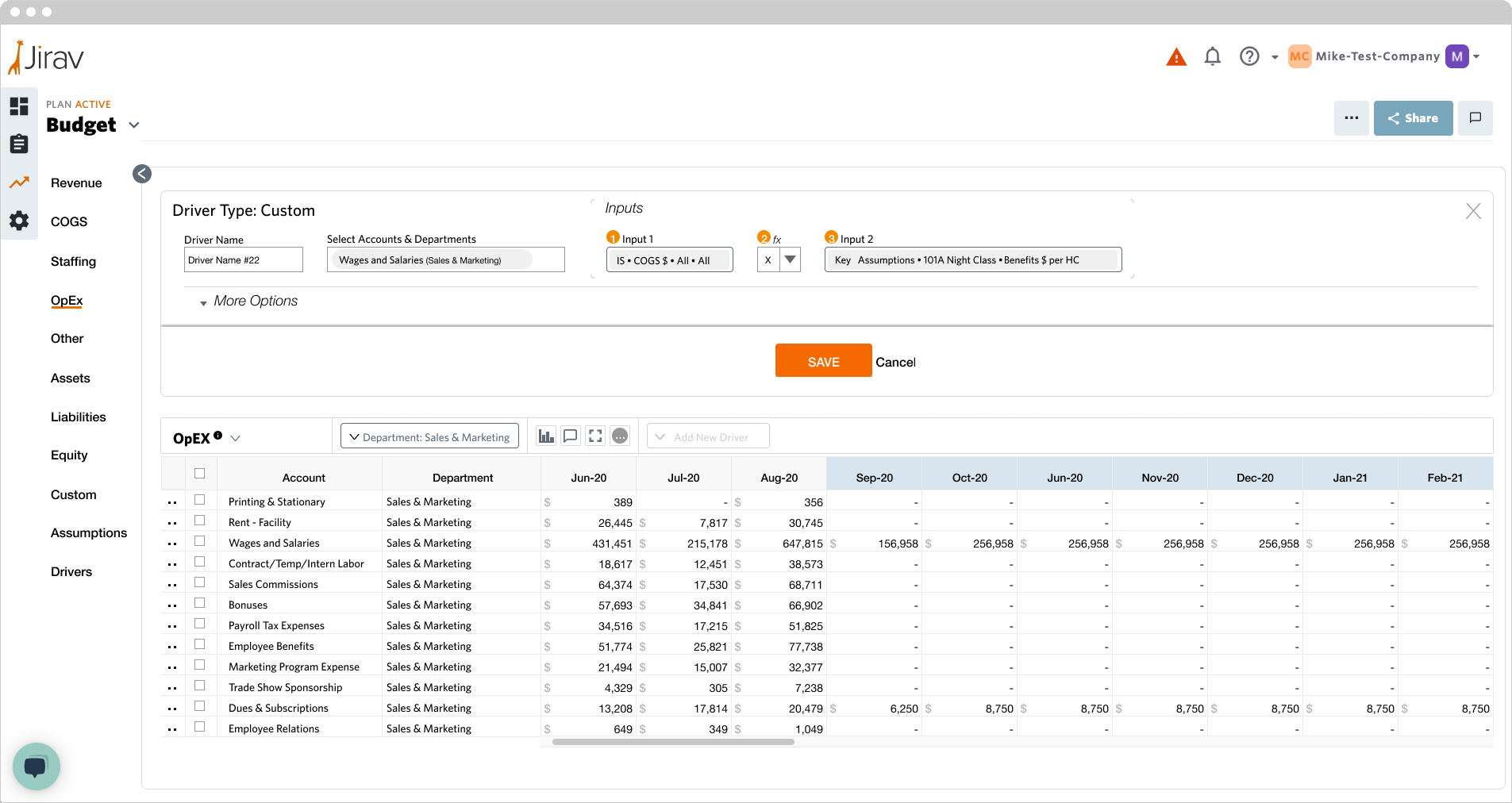
The most flexible of the eight types: users build formulas from financial statement data and named assumption sets, connecting two inputs through a formula operator. This driver type had to support arbitrary logic while staying inside the same panel structure as the simpler, more constrained driver types.
$/Headcount Driver: Assumption Linking
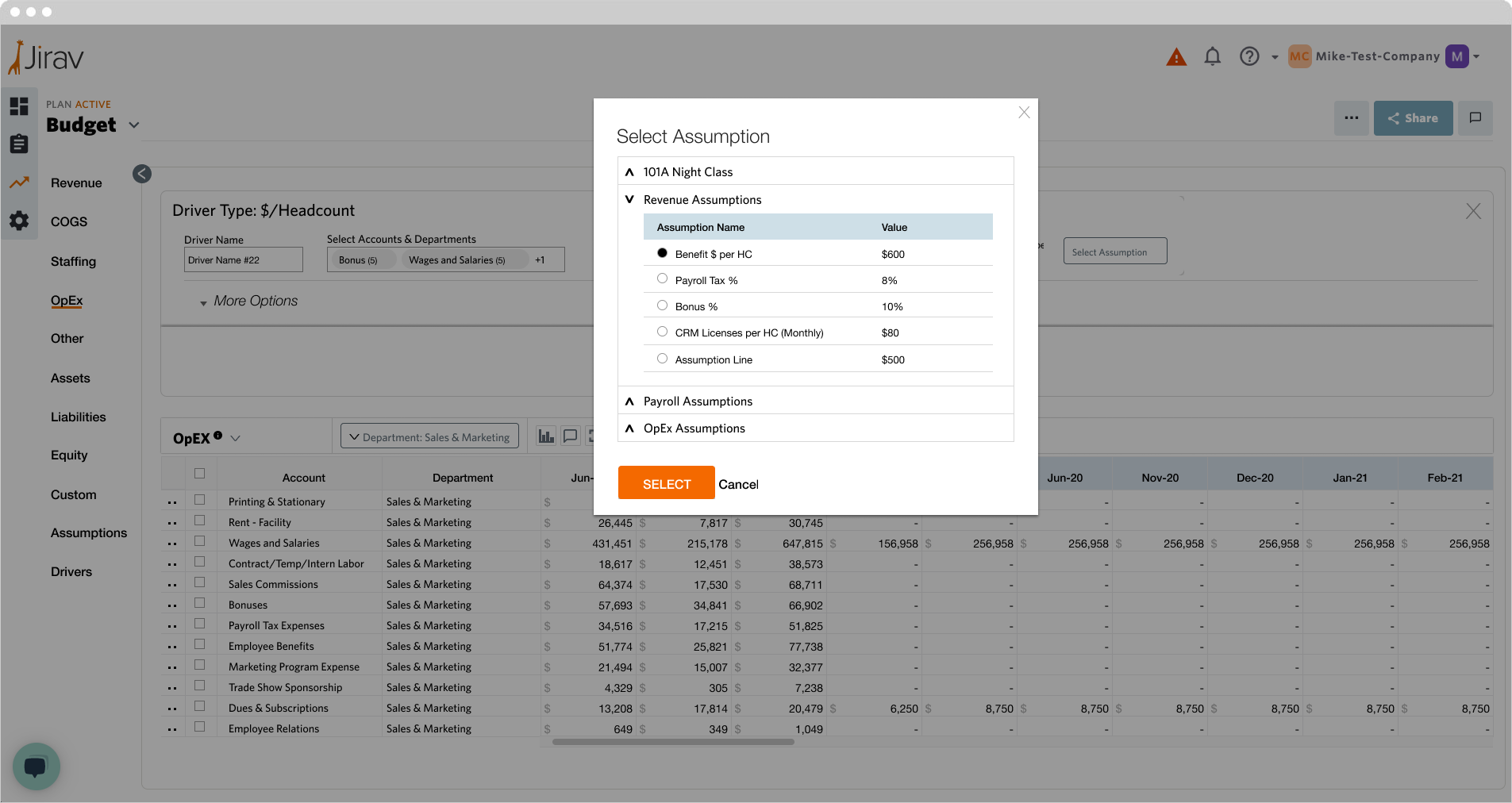
Connects expense accounts to headcount data through a named assumption, organized hierarchically by category. This is the driver type most finance teams reached for first, since headcount-linked expenses are one of the most common recurring budget patterns.
Formula Bar
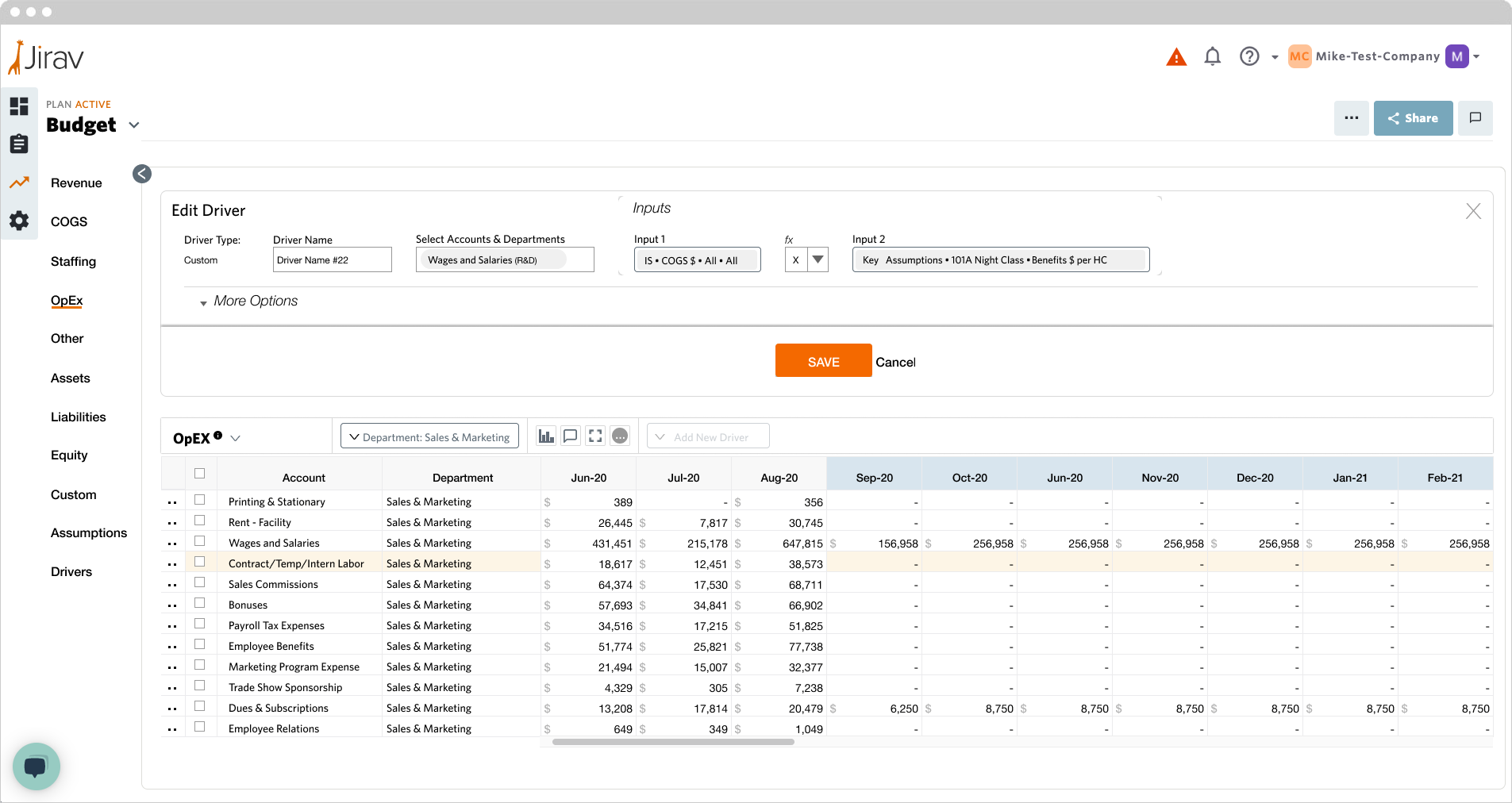
This was the decision I’d point to as the most important one in the project. Rather than requiring users to re-open a driver to remember what it was doing, the formula bar surfaces the full configuration as a readable string directly in the budget table: account, driver type, inputs, and operators, at a glance. It’s also the edit entry point, so the table and the underlying configuration stay tightly connected instead of drifting apart the way spreadsheet formulas often do once nobody remembers why a cell says what it says.