Financial Collaboration System for CFOs

Project Overview
Summary
Finance teams using Jirav to build budgets and forecasts had no way to bring department heads and contributors into the planning process without exporting spreadsheets and working outside the system. I designed a collaboration framework that let plan owners share financial plans directly within Jirav, with granular control over who could see, comment on, or edit specific parts of the data.
I owned the feature end to end as Jirav’s first full-time UX designer, from discovery through wireframes, permission system design, and final visual design. The feature shipped, and the core collaboration model remains part of Jirav’s product today.
Problem to Solve
Jirav is a financial planning and analysis platform used by finance teams to build budgets, forecasts, and financial models. While the core modeling tools were strong, collaboration around those plans was limited.
If finance leaders needed department heads to review or contribute to a plan, they typically exported spreadsheets or shared data outside the system. This broke version control, removed audit visibility, and disconnected collaborators from the underlying financial model.
Financial data is also sensitive by nature. Not everyone who touches a plan should see everything in it. A marketing leader shouldn’t see staffing salaries, and one department shouldn’t be able to edit another team’s numbers. The core design challenge was building a system that let plan owners grant access based on who someone actually was, their role and what they were responsible for, rather than an all-or-nothing choice between full access and none.
Process
Discovery
I was still relatively new to financial planning software when I started this feature, so I spent time upfront learning how FP&A teams structure their plans, how departments contribute to budgets, and how financial permissions typically work across an organization. Working closely with product and engineering, I mapped how different stakeholders interact with financial plans and where collaboration was breaking down: a marketing leader updating marketing expenses, a department head reviewing and commenting on their own team’s budget, a finance administrator needing full visibility across the whole plan.
Design: Wireframes
The permission system was the most important decision in the project. I designed it around role rather than a single access toggle, so an owner could grant exactly the level of visibility and control a specific collaborator actually needed:
- View Only — read access with no ability to make changes
- Comment Only — can annotate but not edit data
- Limited Editing — can edit data only, no structural changes
- Full Editing — complete access within their permitted scope
Beyond those four levels, I added department-based access controls, letting an owner restrict a collaborator to a specific department’s portion of the plan, and granular table-level controls for advanced cases where someone needed access to specific financial tables like revenue, staffing, or operating expenses without seeing the rest.
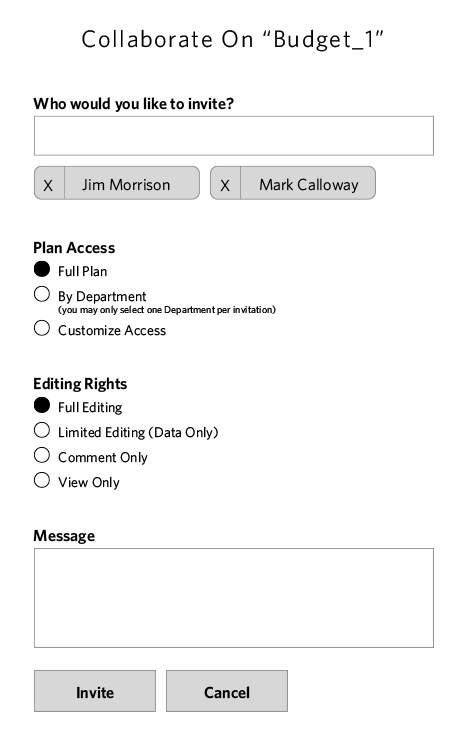
Invite Collaborators: When a user invites someone to collaborate, they can limit access and editing rights at the point of invitation, rather than granting broad access and narrowing it later.
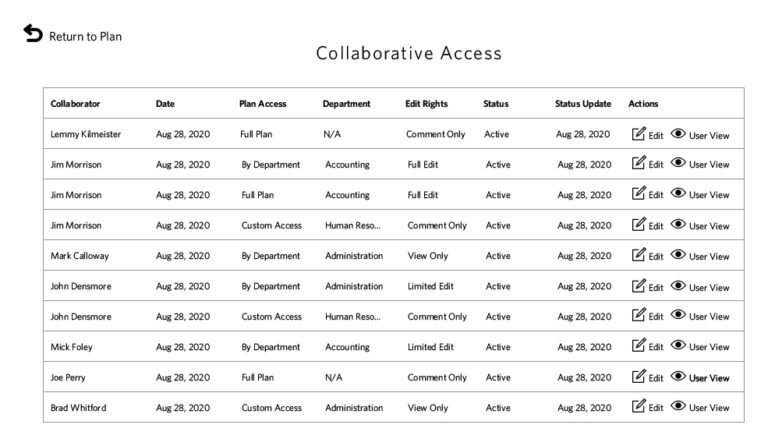
Overall View:Owners can see who has what kind of access, and edit an existing collaborator’s access or request directly from this view.
Outcomes
The collaboration feature shipped and was fully integrated into Jirav’s core product. The permission model remains part of Jirav’s Plan Share functionality today. Adoption in the first year was modest, since the feature wasn’t heavily promoted at launch, which limited discovery among existing users. A more intentional onboarding and in-product promotion strategy would likely have driven faster uptake.
Business Impact
The timing of the feature’s release proved significant. With the rise of remote work in 2020, collaborative financial planning became a critical capability rather than a nice-to-have. The feature helped position Jirav as a stronger competitor in the FP&A market against tools like Mosaic and Pigment, by enabling cross-functional workflows directly inside the planning tool instead of routing around it.
A note on this write-up: the original InVision prototype and much of the supporting process documentation for this project were lost over time. I used Claude to help reconstruct the project’s scope and structure for this case study. The permission architecture and the reasoning behind it, including the role-based access model described above, reflect what I directly recall and can speak to.
Client
Jirav
Services
- Information Architecture
- Wireframes
- User Experience Design
- User Interface Design
- Visual Design
- User Flows
Tools
- Sketch
- InVision
- Figma
- Claude/ChatGPT
Design Elements
Designs
Note: because of the way the application was built, screenshots are unusually wide and are presented individually.
New Feature Tool Tip
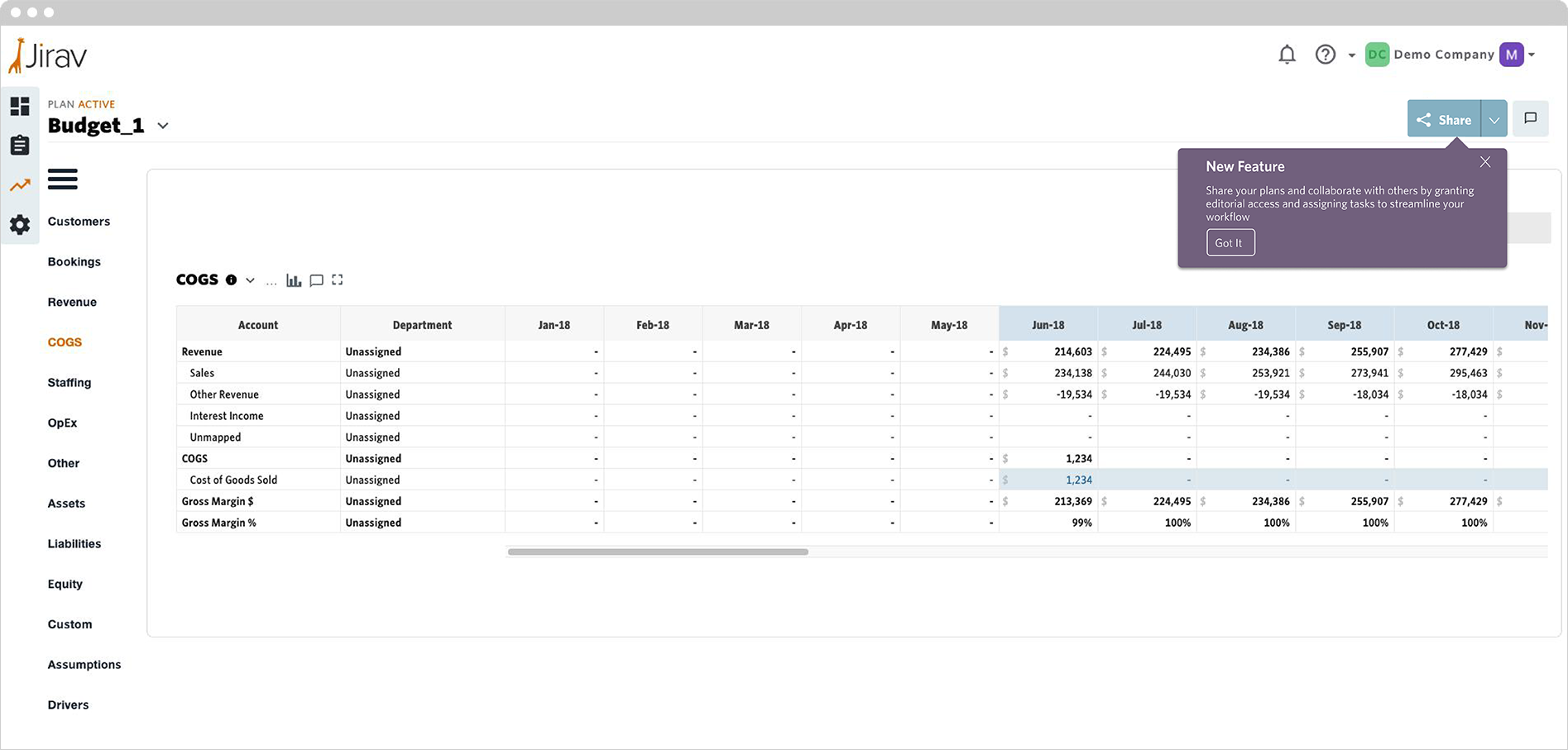
To introduce the collaboration feature in-product, I created a contextual tooltip flyout that highlights the functionality after users encounter the feature’s marketing, bridging the gap between awareness and discovery inside the existing workflow.
Step 1: Select Plan Access
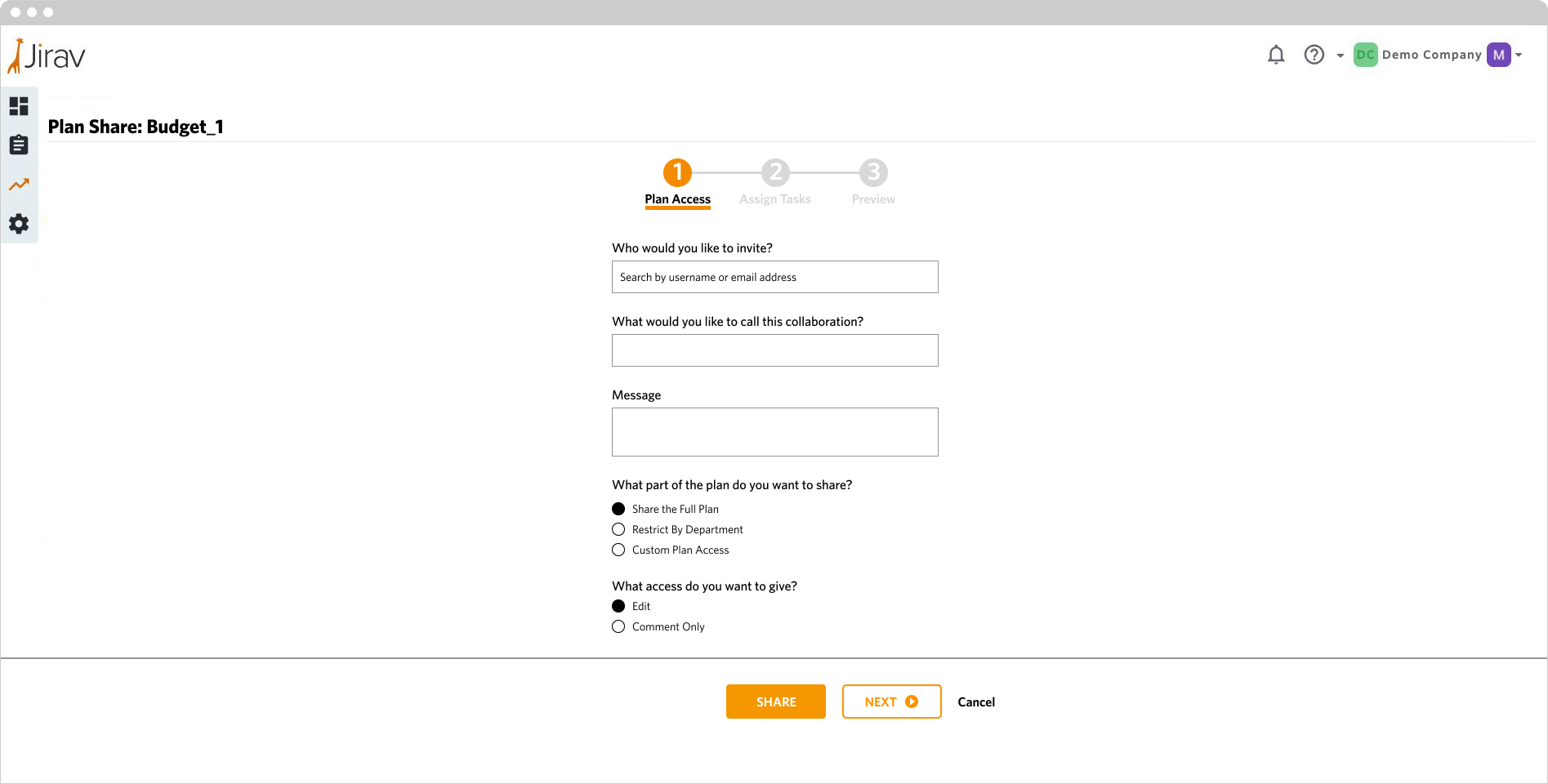
Plan owners can invite collaborators, name the collaboration, choose which part of the financial plan to share, and set the appropriate level of access, all in a single flow.
Step 1: Select Plan Access: Define Access Permissions
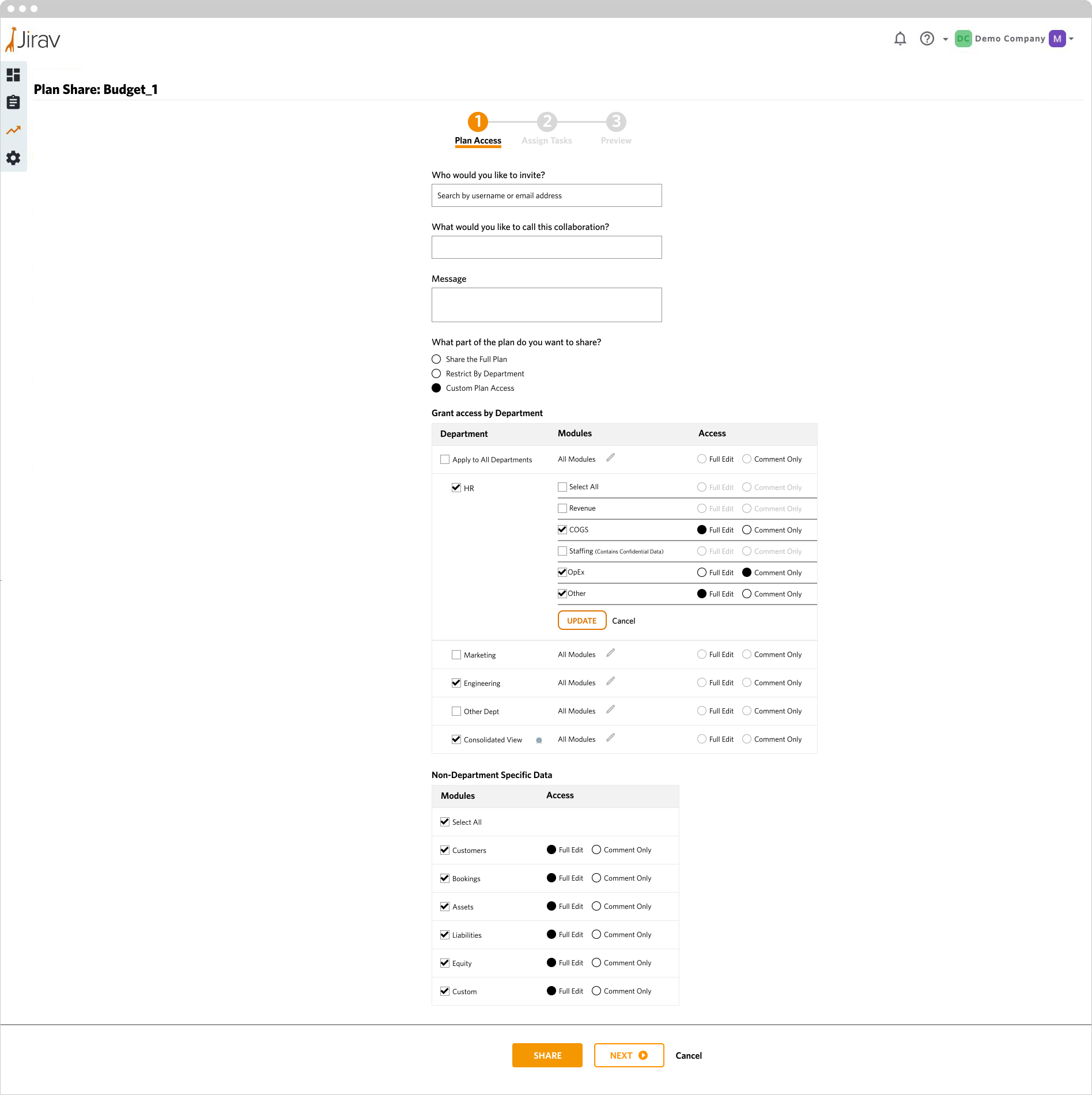
A granular permission system lets owners configure access at both the department and module level. Departments expand to reveal modules, standard subsets of financial data, giving precise control over what a collaborator can view, comment on, or edit.
Step 2: Assign Tasks
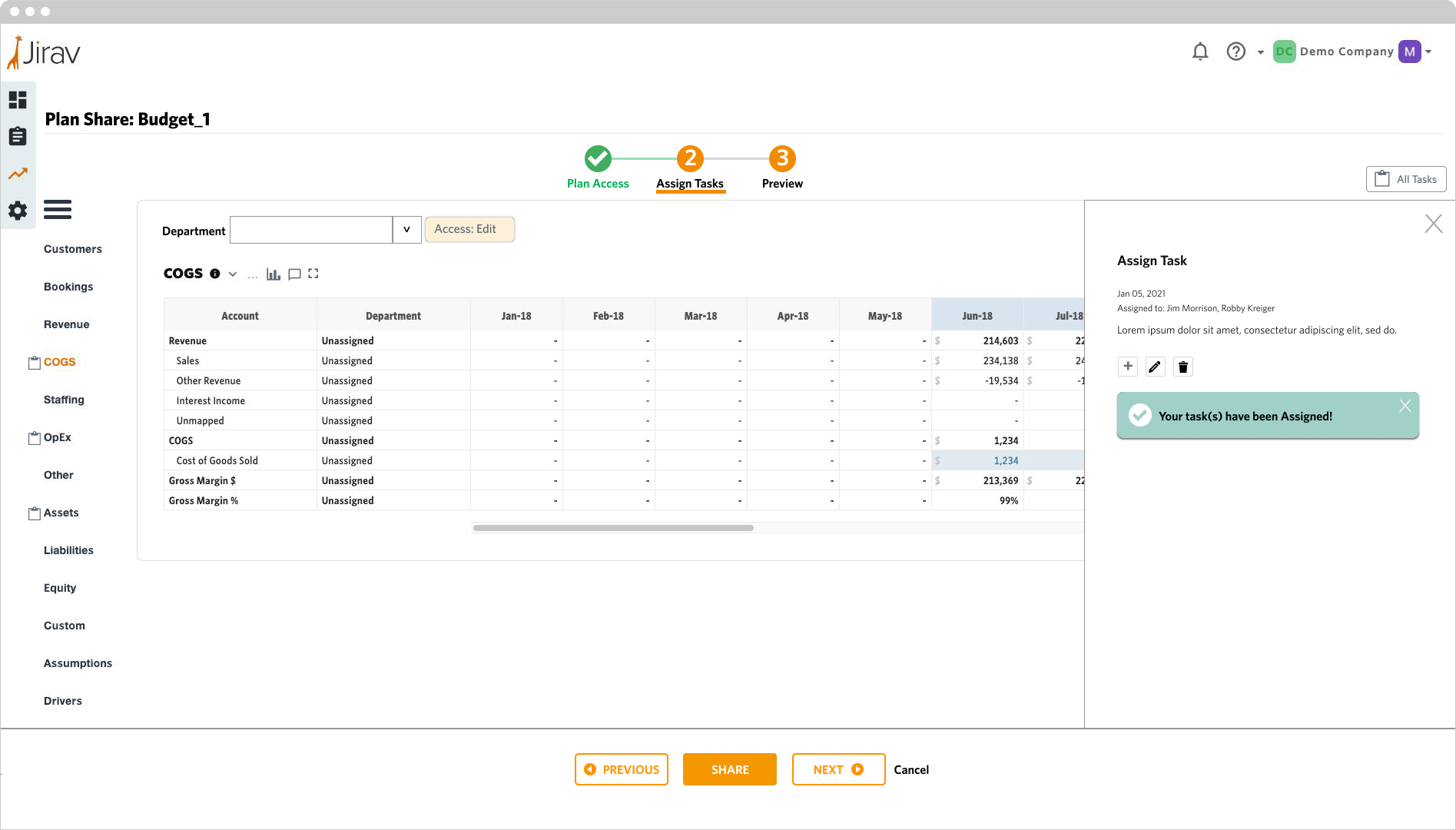
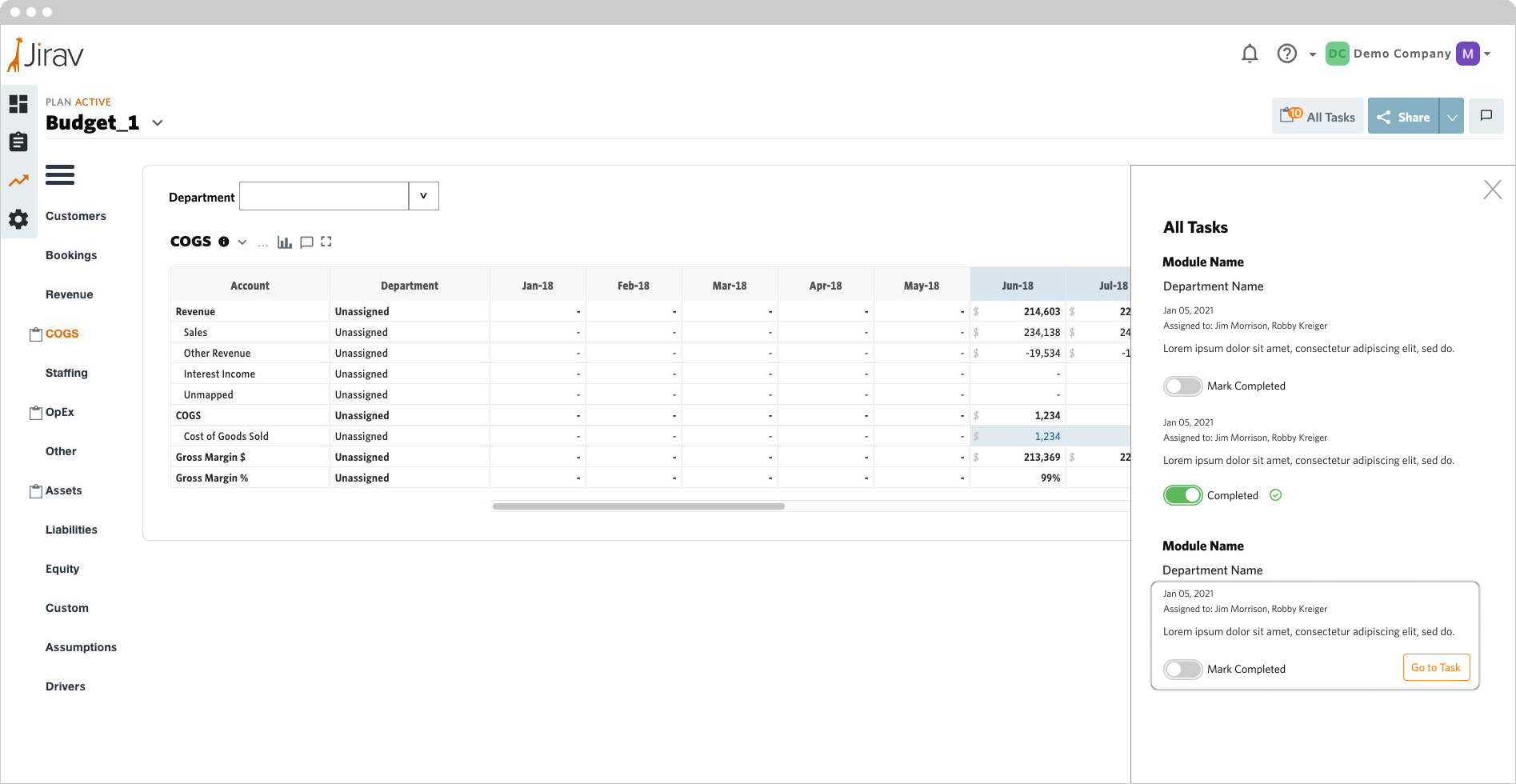
After configuring access, owners can assign tasks to specific areas of the financial plan through a fly-out panel that keeps departments, modules, and individual cells visible for reference. Tasks can be added, edited, or removed at any time.
Plan Management
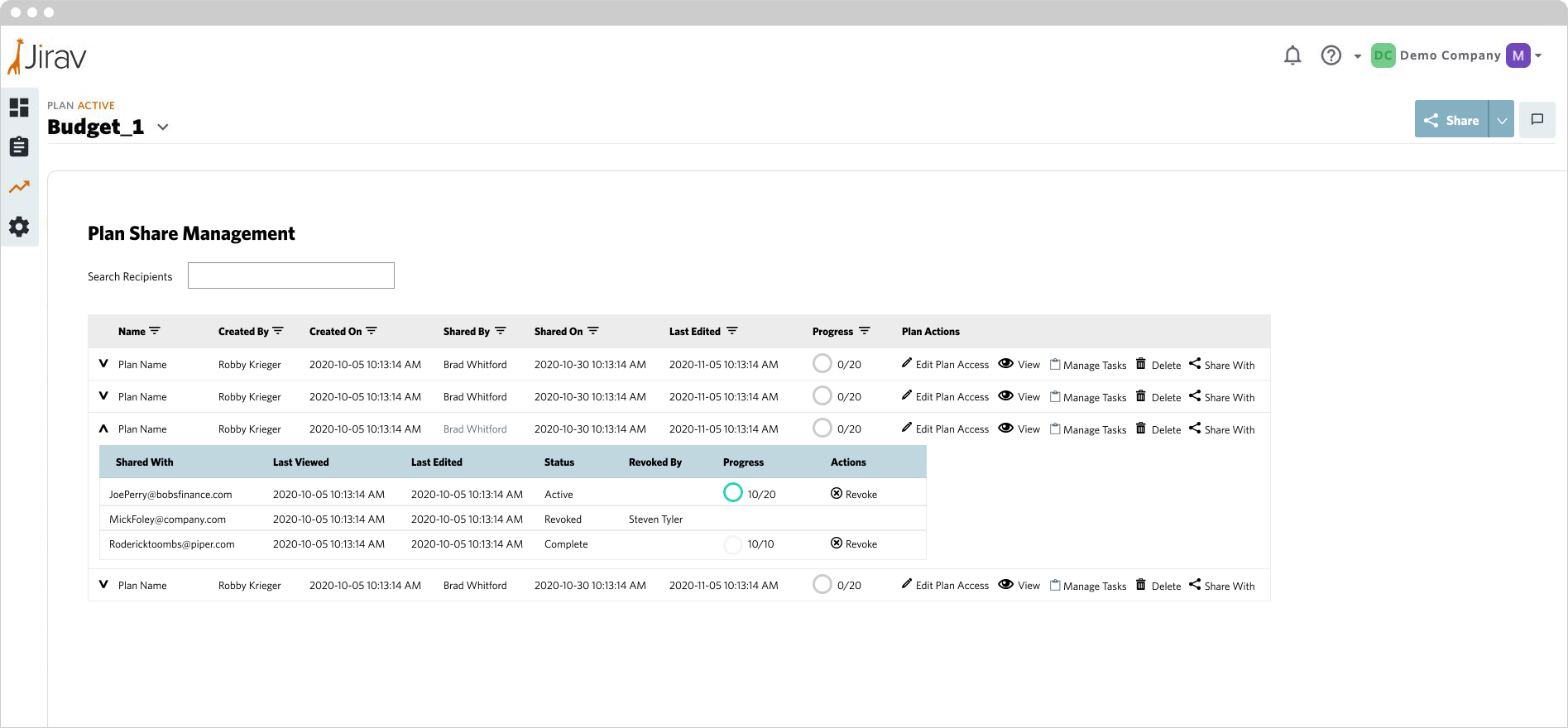
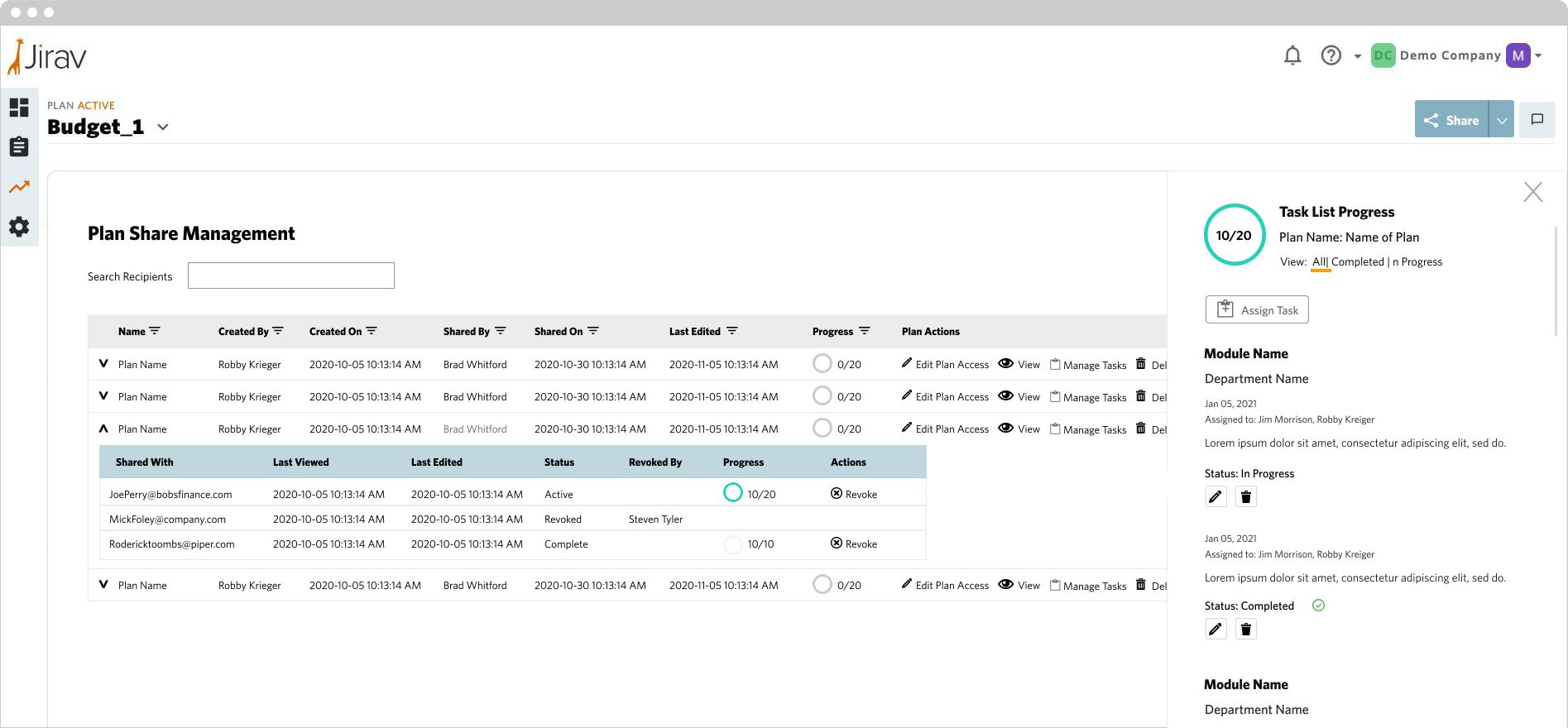
A centralized dashboard gives administrators visibility across all active collaborations, monitoring task progress at the plan and collaborator level, adjusting permissions, managing tasks, and inviting additional participants.