Financial Collaboration System for CFOs

Project Overview
Summary
Finance teams using Jirav to build budgets and forecasts had no way to bring department heads and contributors into the planning process without exporting spreadsheets and working outside the system. I designed a collaboration framework that let plan owners share financial plans directly within Jirav with granular control over who could see, comment on, or edit specific parts of the data.
I owned the feature end-to-end as Jirav’s first full-time UX designer from discovery through wireframes, permission system design, and final visual design. The feature shipped, and the core collaboration model remains part of Jirav’s product today.
Some original design files were lost over time due to tool migrations and the shutdown of InVision. I used AI to analyze recovered prototype screens and reconstruct the user flows for this case study.
Problem to Solve
Jirav is a financial planning and analysis platform used by finance teams to build budgets, forecasts, and financial models. While the core modeling tools were strong, collaboration around those plans was limited.
If finance leaders needed department heads to review or contribute to a plan, they typically exported spreadsheets or shared data outside the system. This broke version control, removed audit visibility, and disconnected collaborators from the underlying financial model.
The goal was to enable plan owners to share financial plans directly within Jirav while maintaining strict control over access and editing permissions.
Financial data is highly sensitive. A marketing leader shouldn’t see staffing salaries, and one department shouldn’t edit another team’s numbers. The challenge was designing a collaboration system that enabled cross-team input while preserving the control finance teams require.
Process
Discovery
When I began working on this feature I was still relatively new to financial planning software. Before designing solutions I spent time learning how FP&A teams structure their plans, how departments contribute to budgets, and how financial permissions typically work across an organization.
Working closely with product and engineering I mapped how different stakeholders interact with financial plans and where collaboration breaks down:
- A marketing leader might need to update marketing expenses
- A department head might review and comment on their team’s budget
- Finance administrators need full visibility and control across the entire plan
The challenge was enabling cross-department collaboration while ensuring sensitive financial information remained properly restricted.
Design: Wireframes
I created wireframes to explore how collaboration and permission controls could work inside the product, focusing on defining the core collaboration workflow and permission structure.
The permission system was the most critical design decision. I designed four levels of access to support different types of contributors:
- View Only — read access with no ability to make changes
- Comment Only — can annotate but not edit data
- Limited Editing — can edit data only, no structural changes
- Full Editing — complete access within their permitted scope
Beyond permission levels I designed department-based access controls — allowing plan owners to restrict a collaborator to a specific department’s portion of the plan — and granular table-level controls for advanced scenarios where a collaborator needed access to specific financial tables like revenue, staffing, or operating expenses.
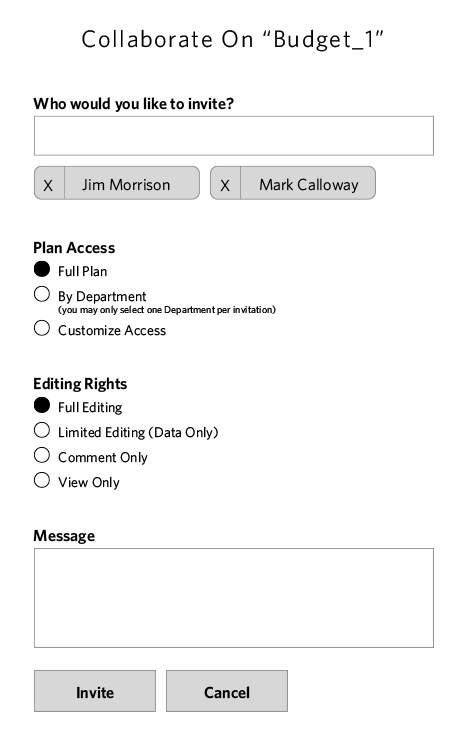
Invite Collaborators: When a user invites someone to collaborate they have the ability to limit access and editing rights.
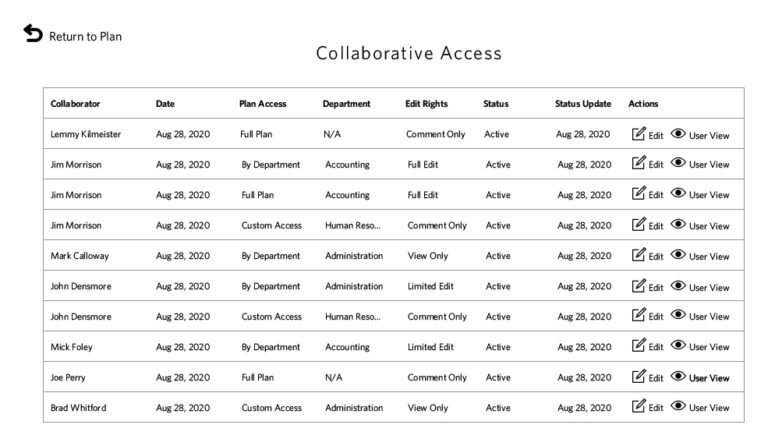
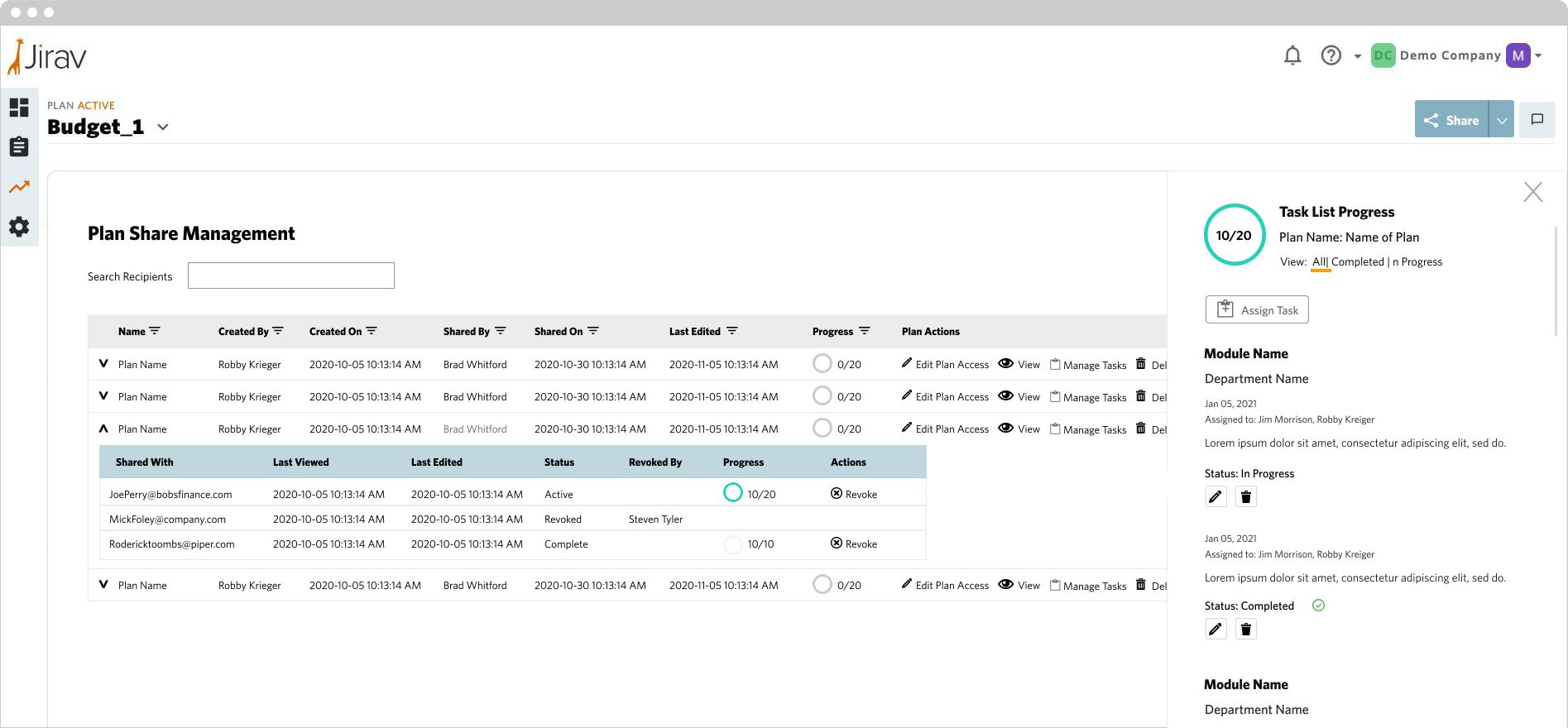
Overall View: The user has the ability to see who has what kind of access, edit their access or collaboration request and in later versions view collaborator progress.
AI-Assisted Process Documentation
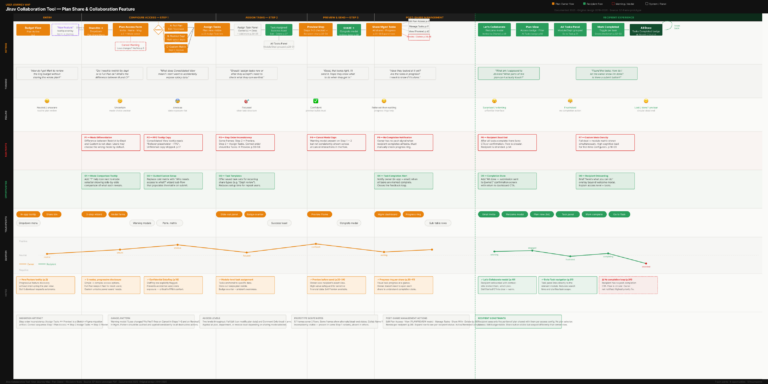
With original files lost to tool migrations, I used AI to analyze recovered prototype screens and reconstruct the user flows and journey map for this feature.
I had Claude create a new journey map based on the available files. I exported it as a .svg and placed it in a figma file.
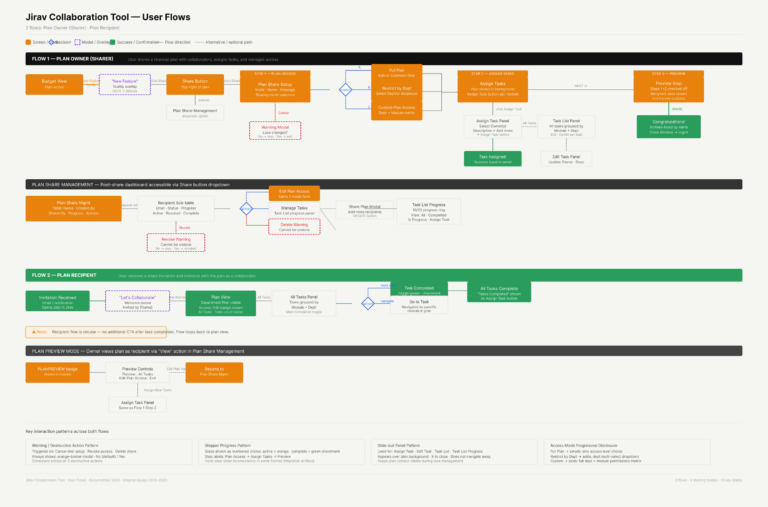
I also had Claude create new user flows based on available files. I exported it as a .svg and placed it in a figma file.
Outcomes
The collaboration feature shipped and was fully integrated into Jirav’s core product. The core collaboration model remains part of Jirav’s Plan Share functionality today. Adoption in the first year was modest the feature wasn’t heavily promoted at launch, which limited discovery among existing users. A more intentional onboarding and in-product promotion strategy would likely have driven faster uptake.
Business Impact
The timing of the feature’s release proved significant. With the rise of remote work in 2020, collaborative financial planning became a critical capability rather than a nice-to-have. The feature helped position Jirav as a key player in the FP&A market, differentiating it from competitors like Mosaic and Pigment by enabling seamless cross-functional workflows directly within the planning tool.
Client
Jirav
Services
- Information Architecture
- Wireframes
- User Experience Design
- User Interface Design
- Visual Design
- User Flows
Tools
- Sketch
- InVision
- Figma
- Claude/ChatGPT
Design Elements
Designs
Note: because of the way the application was built, screenshots are unusually wide and are presented individually.
New Feature Tool Tip
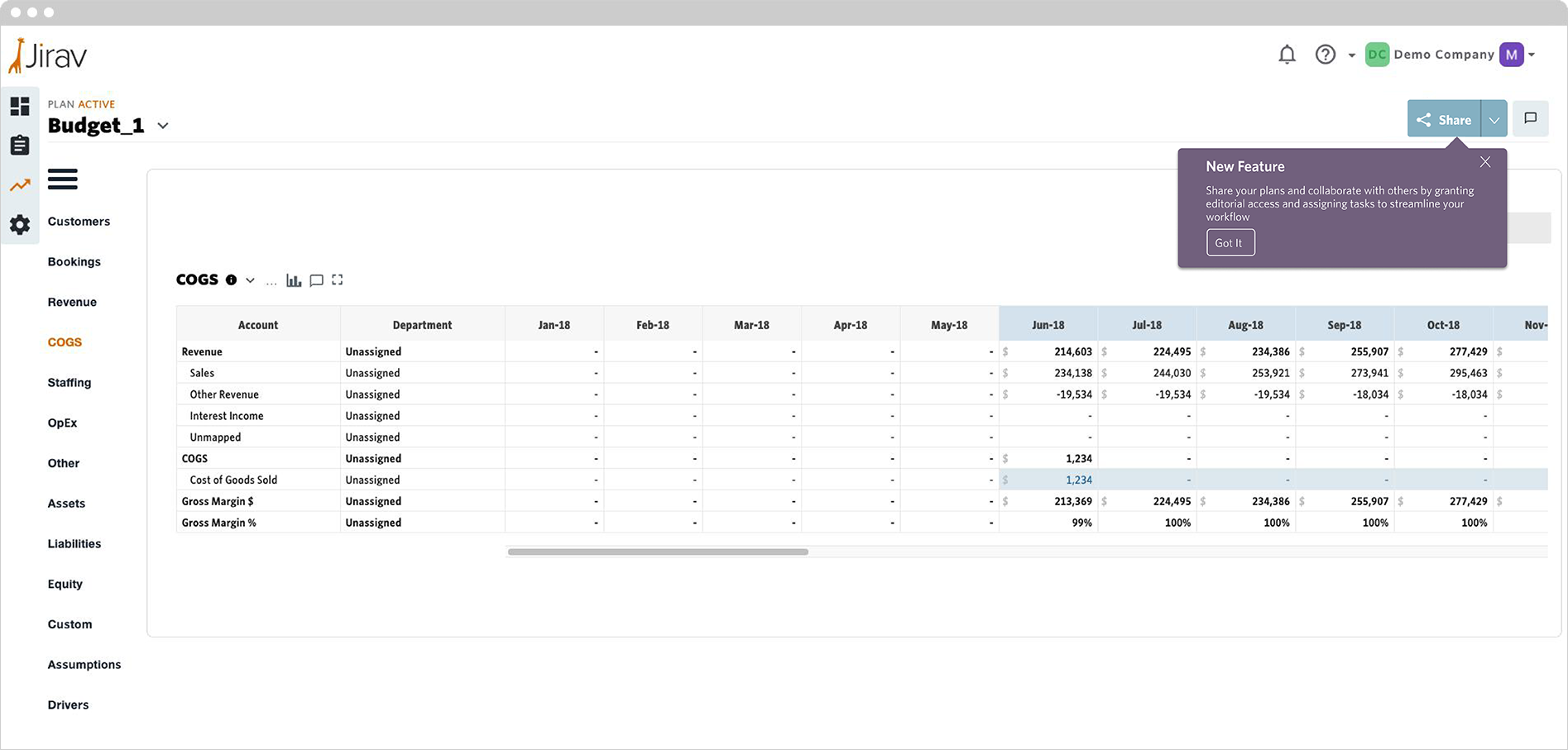
To introduce the collaboration feature in-product I created a contextual tooltip flyout that highlights the functionality after users encounter the feature’s marketing — bridging the gap between awareness and discovery within the existing workflow.
Step 1: Select Plan Access
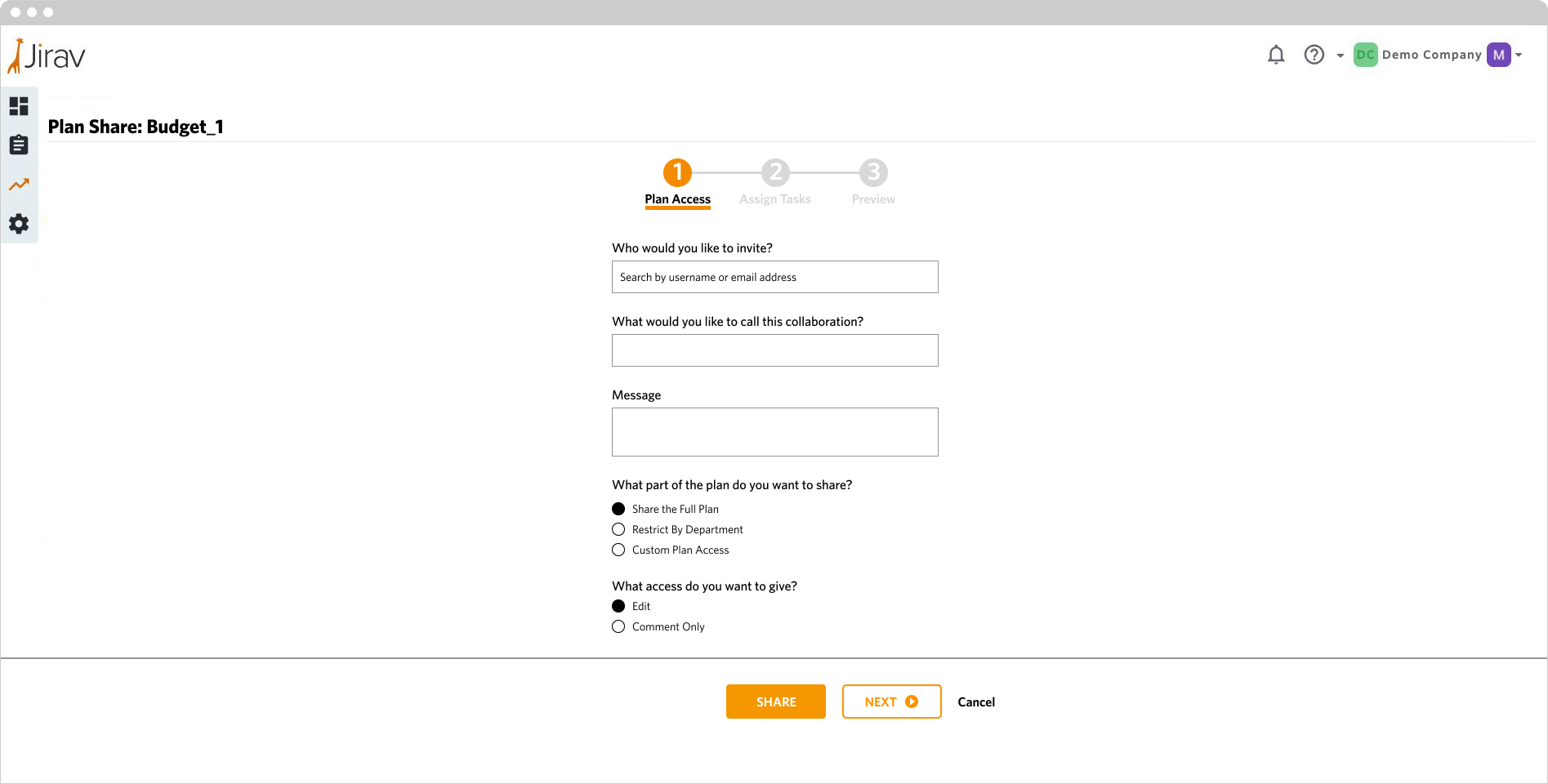
Plan owners can invite collaborators, name the collaboration, choose which part of the financial plan to share, and set the appropriate level of access all in a single flow.
Step 1: Select Plan Access: Define Access Permissions
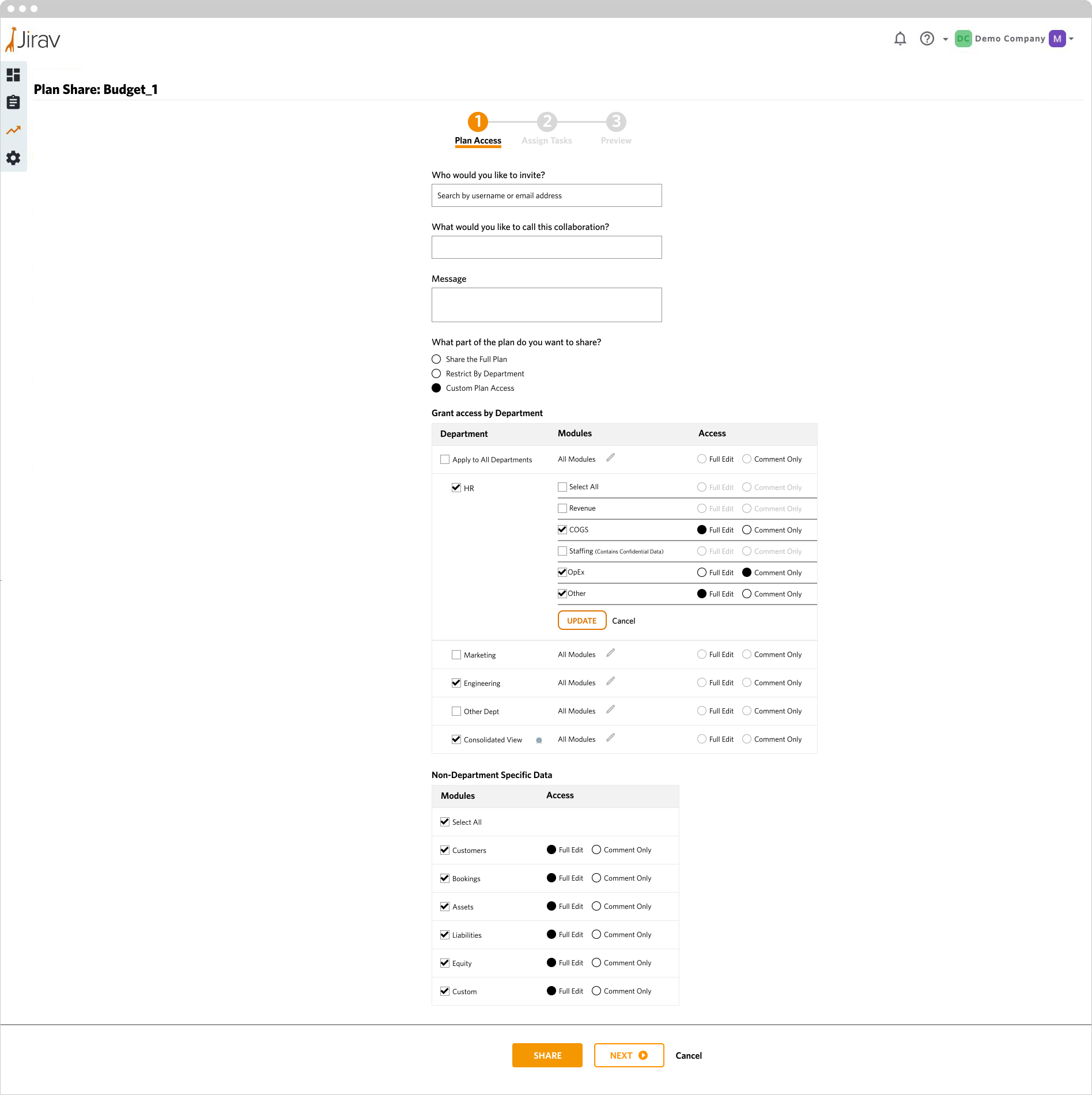
A granular permission system lets owners configure access at both the department and module level. Departments expand to reveal modules standard subsets of financial data giving precise control over what collaborators can view, comment on, or edit.
Step 2: Assign Tasks
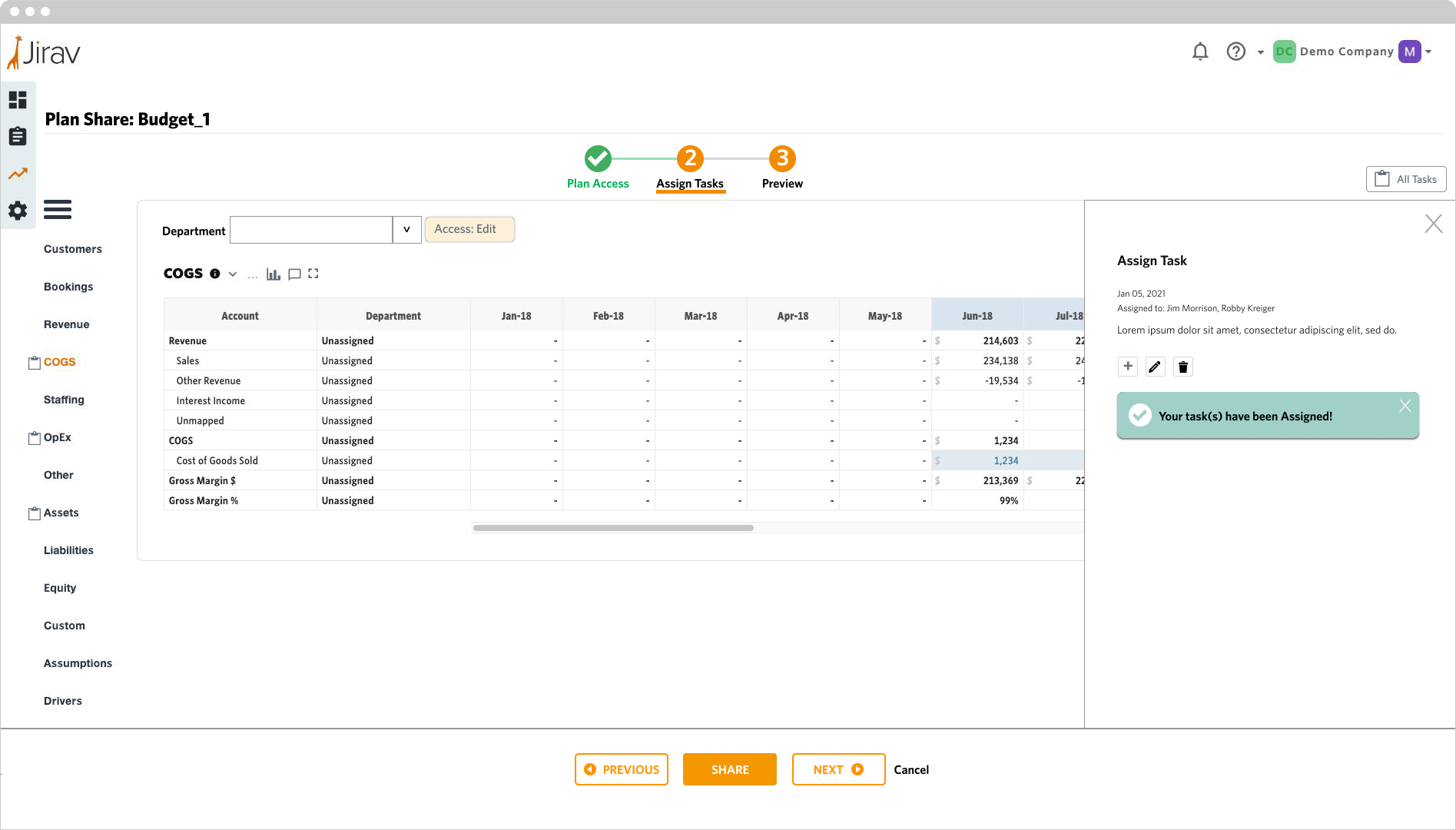
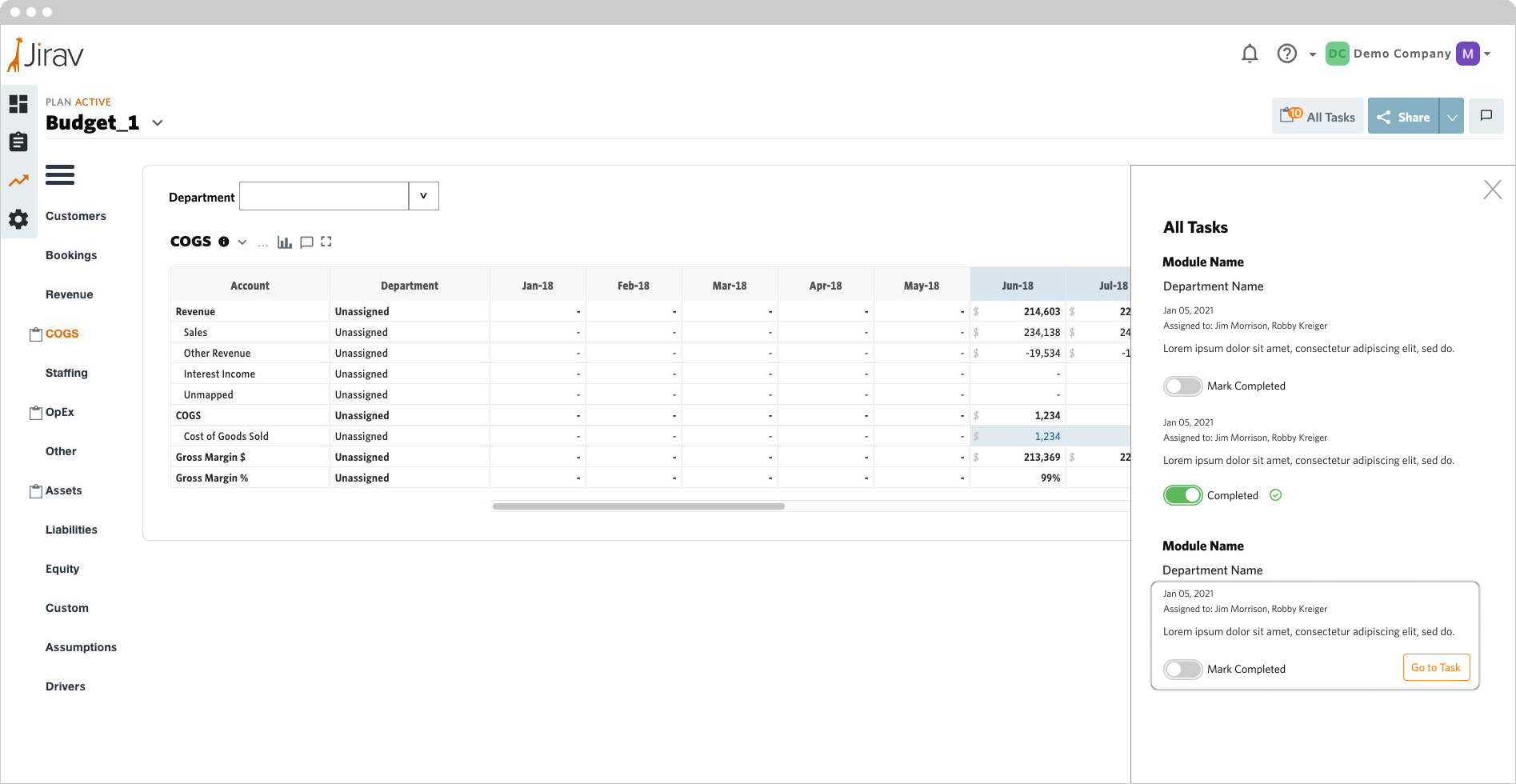
After configuring access, owners can assign tasks to specific areas of the financial plan through a fly-out panel that keeps departments, modules, and individual cells visible for reference. Tasks can be added, edited, or removed at any time.
Plan Management
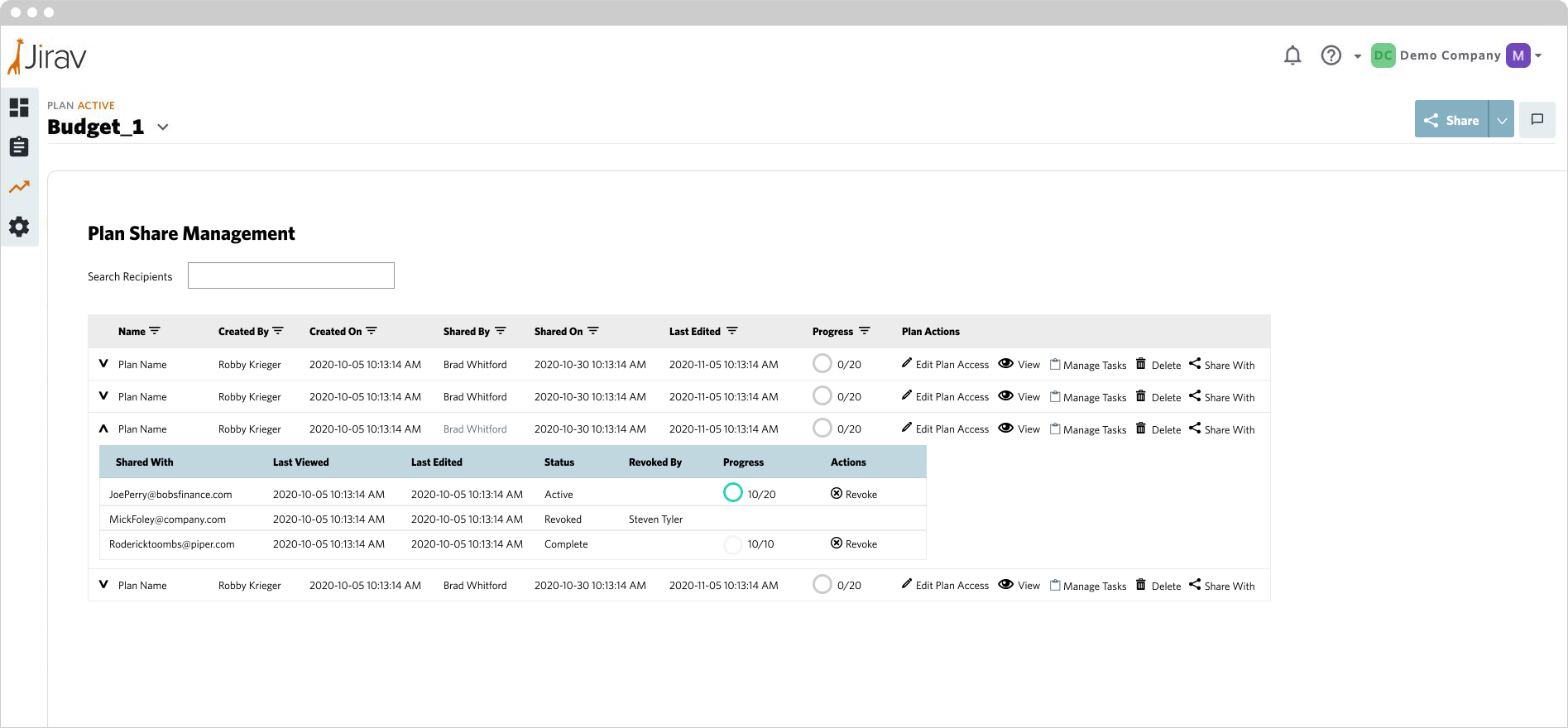
A centralized dashboard gives administrators visibility across all active collaborations monitoring task progress at the plan and collaborator level, adjusting permissions, managing tasks, and inviting additional participants.