
Time Entry App for Construction Sites

Project Overview
Summary
Viewpoint’s existing time entry system required a crew leader to manage clock-ins and clock-outs on behalf of the entire crew. On large job sites with dozens of workers, this created a bottleneck every morning and evening and introduced errors when the crew leader entered time on behalf of others.
I redesigned the workflow as a self-service kiosk application for tablets and mobile devices, allowing each crew member to sign in and enter their own time independently. Working closely with the developer and product owner I streamlined the sign-in, job selection, and time entry flows for both form factors and built interactive prototypes for each.
Problem to Solve
Construction crews needed a way to track time accurately and independently in the field, without relying on a crew leader to manage entries on their behalf. The solution needed to work across tablets and mobile devices, support multiple users on a shared device, and be simple enough for workers to complete quickly under field conditions.
Key design considerations shaped the entire approach:
Multi-user support: Each crew member signs in and enters time independently on a shared device, with no data crossing between sessions.
Device-agnostic: The flow works seamlessly on both tablets and mobile phones, adapting layout without changing the underlying workflow logic.
Core task focus: The flow covers exactly what’s needed and nothing more: sign in, select job, clock in or out, submit. Every extra step was a candidate for removal.
Error reduction: A step-by-step guided flow minimizes incorrect entries by keeping users focused on one decision at a time before moving forward.
Reusability: The same flow works across multiple job sites and crew configurations without requiring reconfiguration.
Process
This was a focused execution project rather than a discovery-driven redesign. The problem was well-defined, the user was well-understood, and the constraints were clear. I worked directly with the developer and product owner to rapidly translate requirements into a working design.
Using the single job creation workflow as the structural template, I designed screens for the core flow while the developer implemented the conditional logic for additional job types in parallel. Once screens were finalized I assembled them into interactive prototypes in InVision, giving the team a clear, navigable reference for how both the tablet and mobile versions would work.
Outcomes
The design delivered a complete self-service time entry flow covering sign-in, job selection, clock in, clock out, and end-of-day submission for both tablet and mobile. The flow supports multiple crew members on a shared device, adapts to different job types through conditional logic, and includes compliance features including injury reporting and digital signature on submission.
Business Impact
The self-service kiosk application made time tracking on large job sites faster, more accurate, and no longer dependent on a single crew leader to manage entries for everyone. The feature integrated with the existing time management platform and became a key selling point for the product, extending its value beyond its original scope.
Client
Viewpoint
Services
- Information Architecture
- User Experience Design
- User Interface Design
Tools
- Sketch
- InVision
Design Elements
Tablet Screens
Both tablet and mobile versions cover the same core flow with layouts adapted for each form factor. Tablet screens are shown first, followed by the mobile equivalents.
Sign In
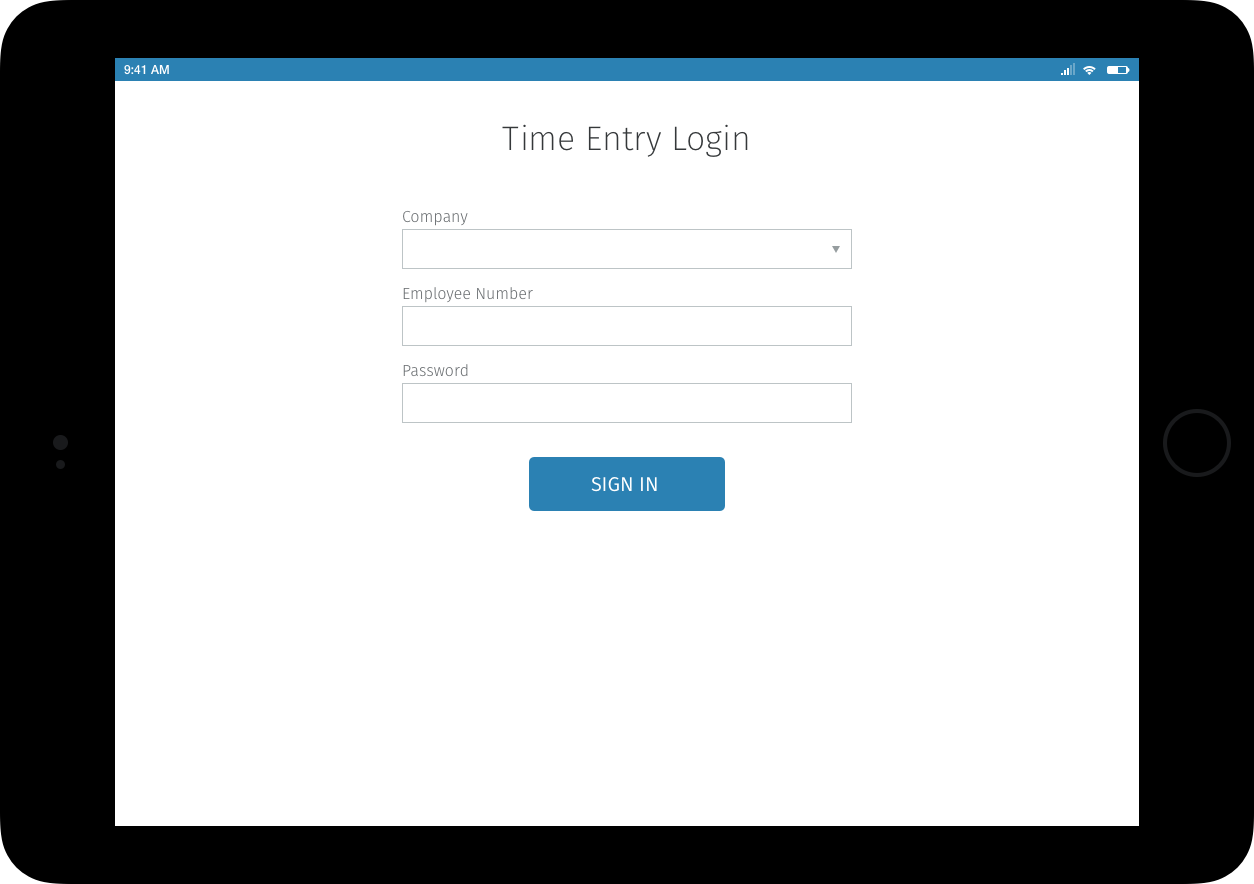
The sign-in screen is the entry point for each crew member. Because the device is shared, sign-in resets the session cleanly between users, keeping each worker’s time entries separate and accurate.
Start Job Set Up
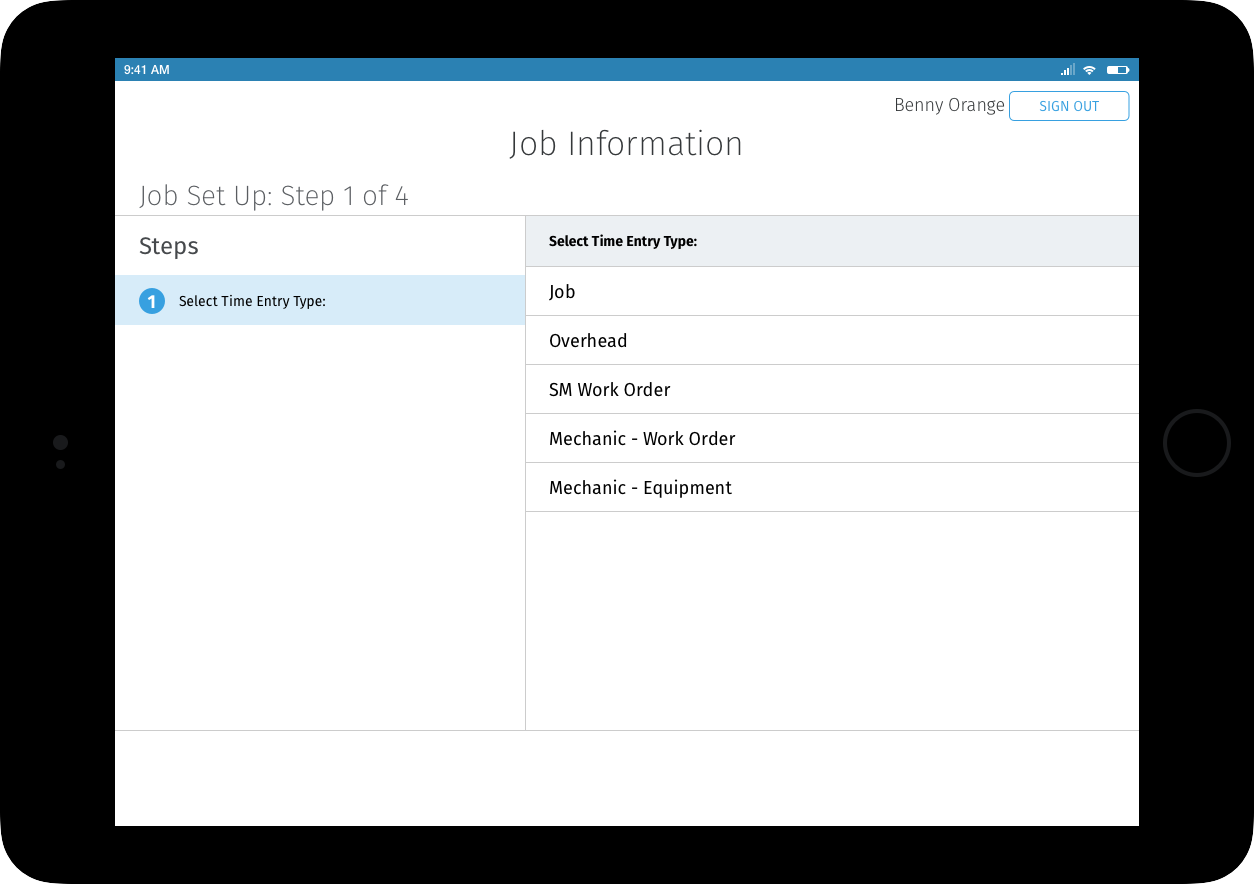
After signing in, the crew member selects the time entry type for their job. Presenting this as a guided selection rather than a form reduces errors and keeps the flow moving quickly under field conditions.
Complete Job Set Up
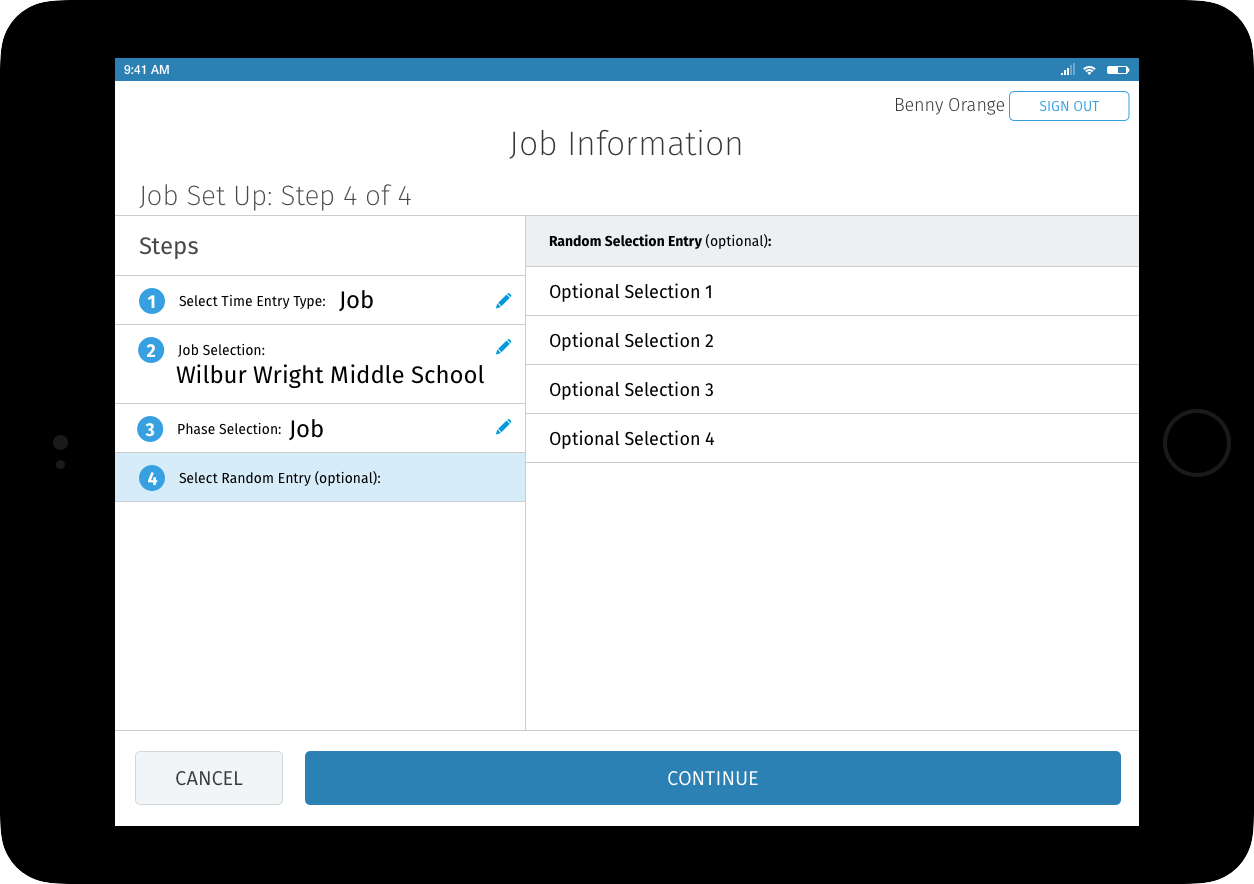
Once all required information is selected the Continue button activates, allowing the user to proceed to clock in. Users can go back and modify any selection at this stage, ensuring accuracy before committing.
Clock In
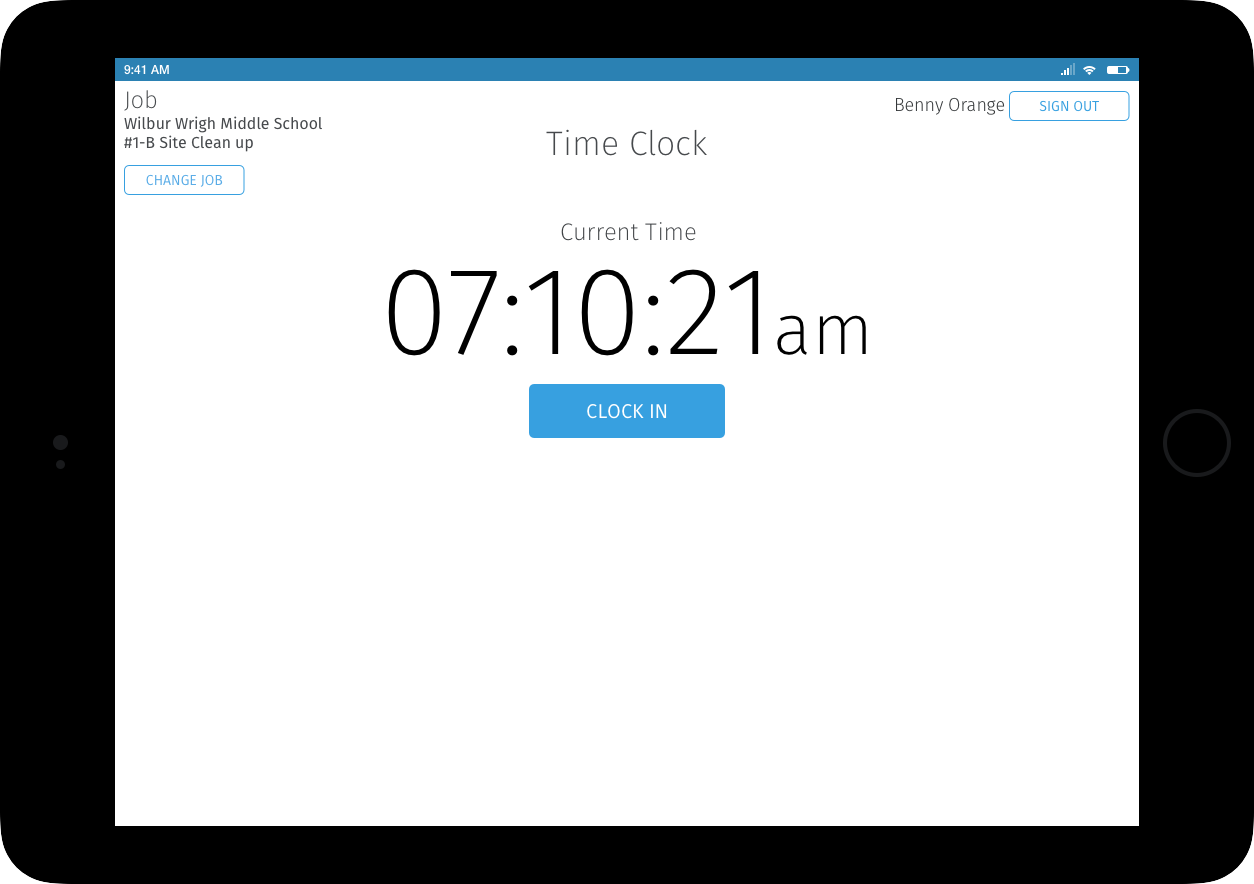
The current job appears in the upper-left corner and the user’s name in the upper-right, giving immediate context for the session. The primary action is Clock In, keeping the screen focused on the single task at hand. Users can sign out or change the job from this screen at any point.
Clock Out
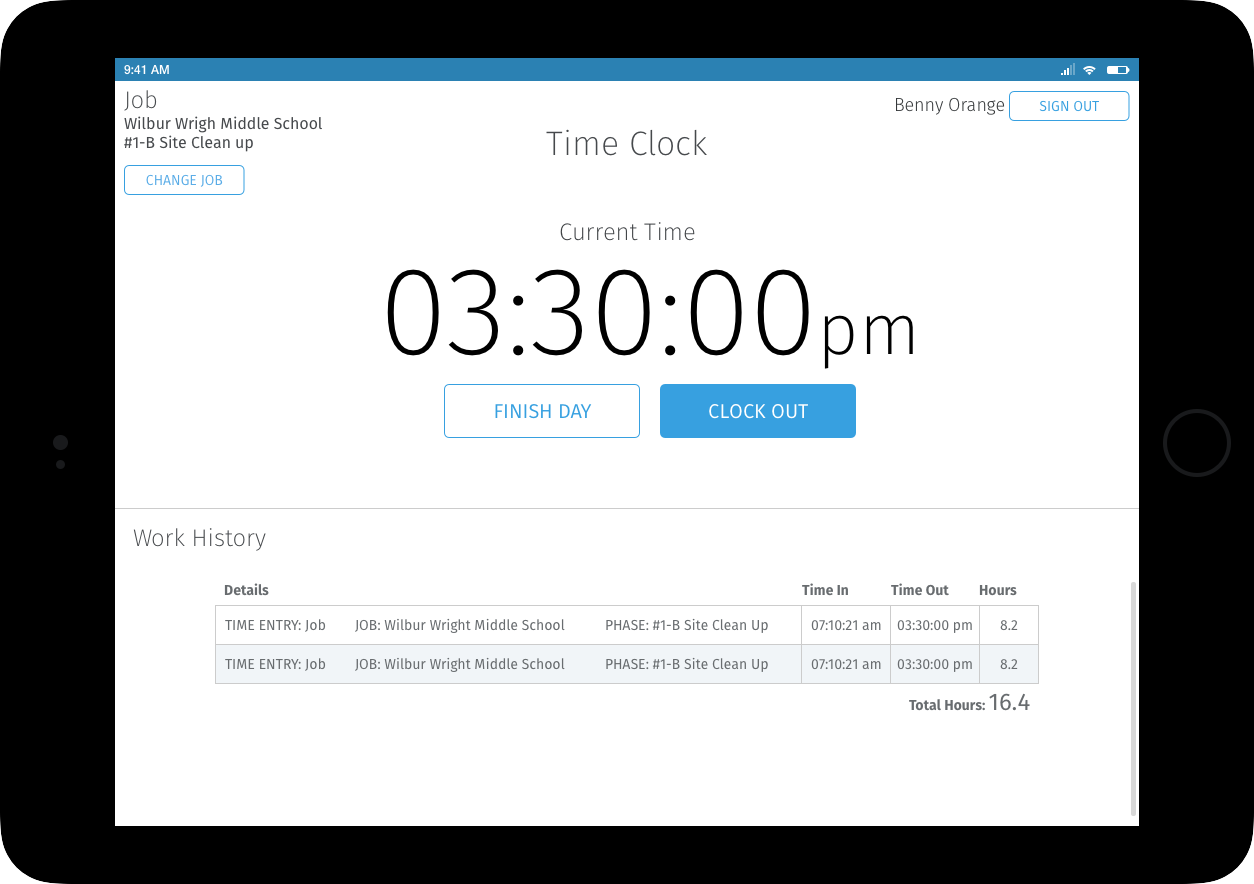
The next time a user logs in after clocking in they are presented with the Clock Out screen. Once they clock out they are redirected to the Clock In screen, ready for the next session or the next crew member.
Finish Day
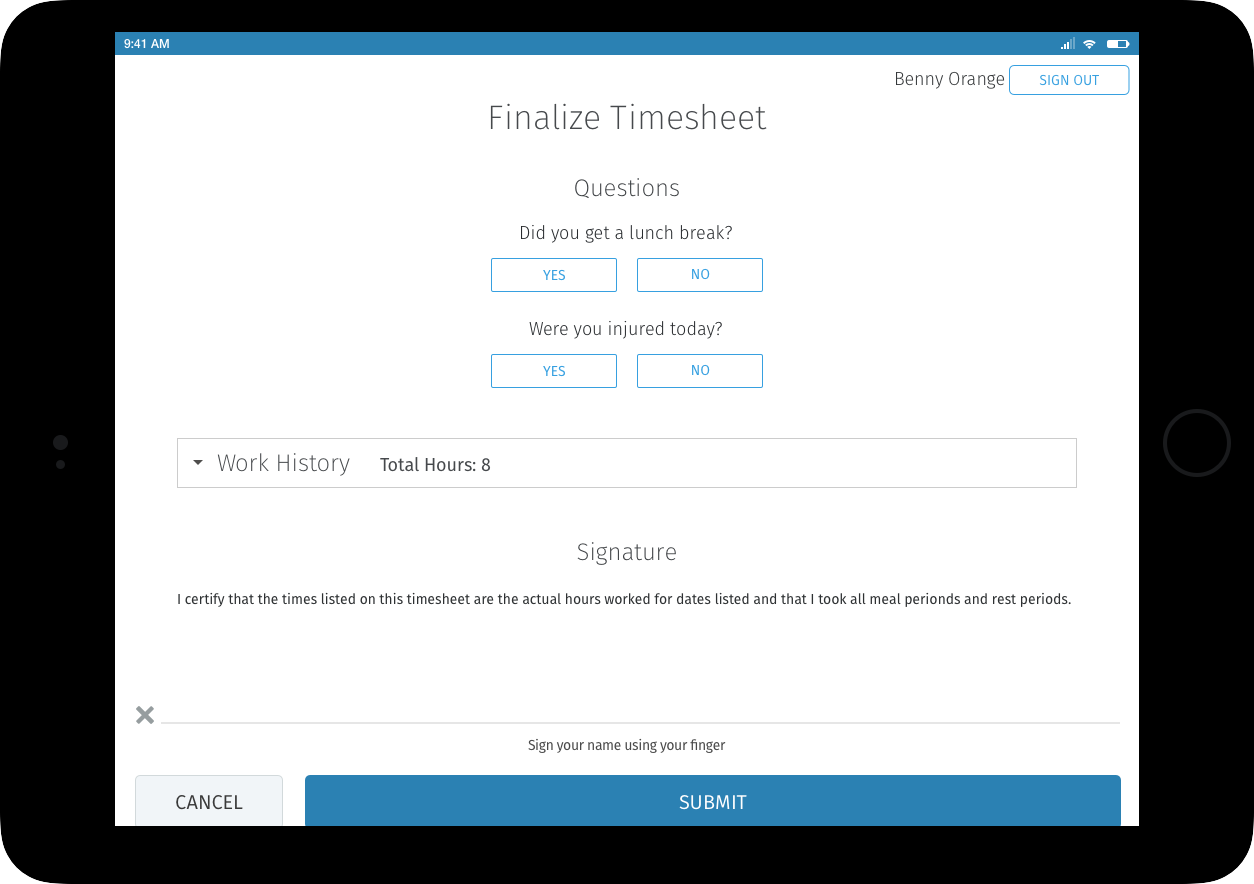
At the end of the day users complete a brief compliance checklist covering lunch and injury reporting. If an injury is reported the user is flagged in the full time management system for follow-up. Work history is available in an expandable area for review. Users must sign before submitting, creating an auditable record and ensuring accountability for the day’s time entries.
Mobile Screens
Sign In
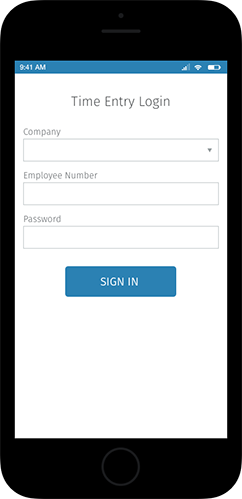
Same session-reset logic as the tablet version, adapted for a smaller screen without changing the underlying flow.
Start Job Set Up
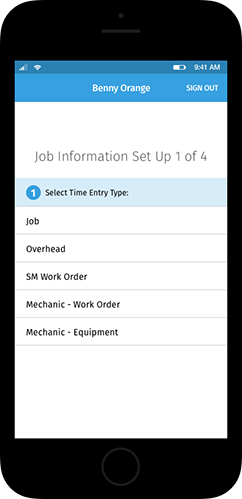
Job type selection on mobile, optimized for one-handed use with larger tap targets.
Complete Job Set Up
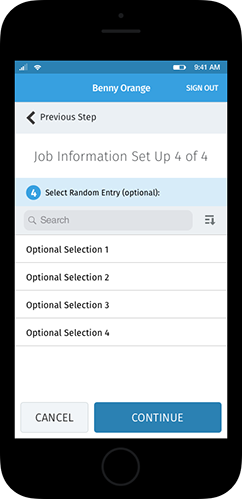
All required fields confirmed before proceeding to clock in, with the same back-navigation available as the tablet version.
Clock In
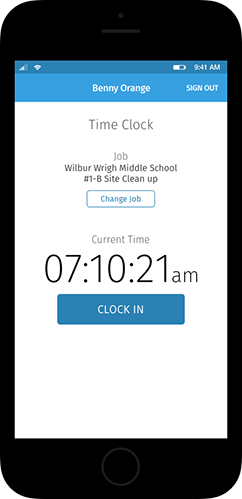
Job and user context visible at a glance. Clock In is the primary action with no competing elements on screen.
Clock Out
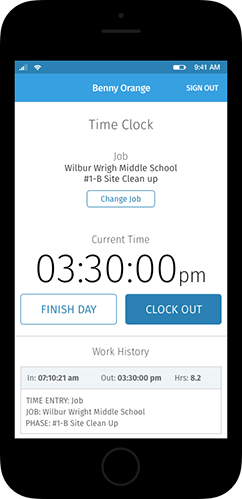
Clock out on return, with redirect to a clean Clock In screen for the next session.
Finish Day
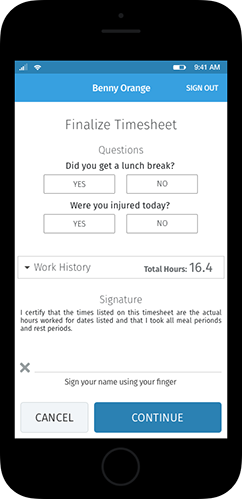
End-of-day compliance checklist, injury flagging, work history review, and digital signature, all adapted for mobile without removing any of the compliance features present in the tablet version.